
Suppliers are who you buy from. Fiftify uses their lead times and order rules to work out when you need to reorder and what a purchase order should look like.
The default supplier
Section titled “The default supplier”Open Settings → Suppliers. Your account already has one, tagged Default, with a lead time of 0 days and no minimum order quantity.
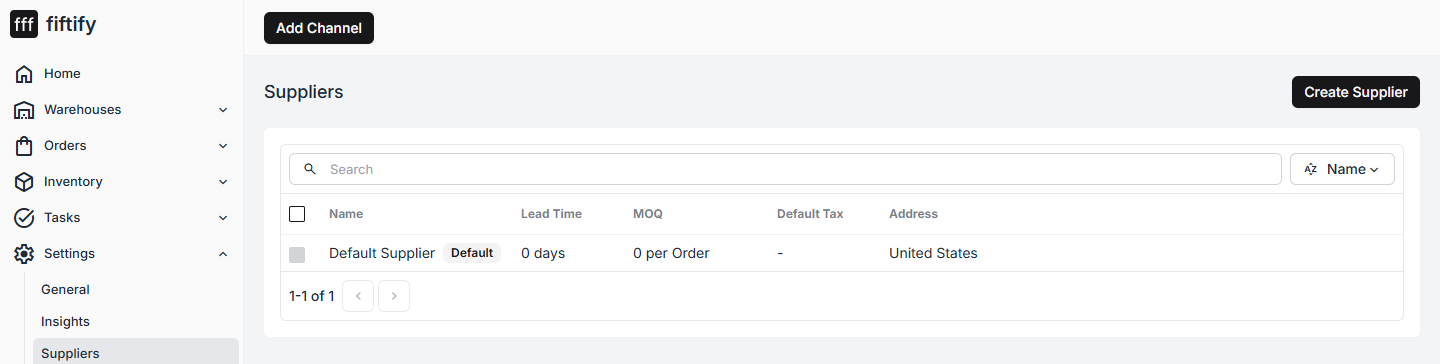
It exists so nothing breaks before you have real suppliers. Replace it with your own as soon as you have them.
Create a supplier
Section titled “Create a supplier”Select Create Supplier. The dialog asks for one thing — the name.
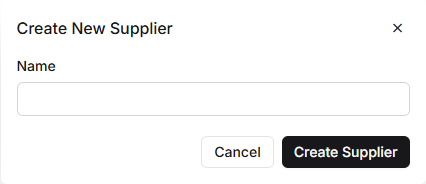
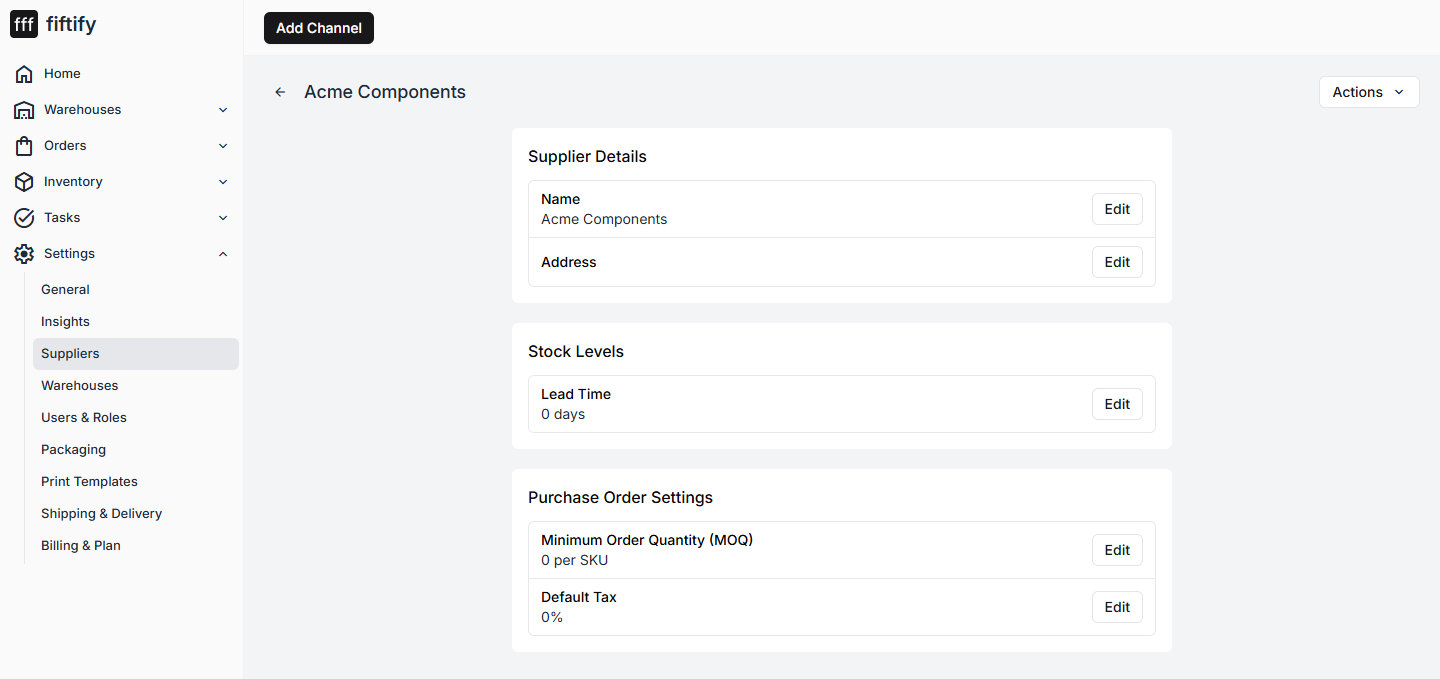
Enter it and select Create Supplier. Fiftify takes you to the supplier page, where the rest of the detail lives.
Fill in the details
Section titled “Fill in the details”Each field has its own Edit control:
Supplier Details
- Name — how the supplier appears everywhere else in the app
- Address — where orders are sent
Stock Levels
- Lead Time — days between placing an order and receiving it. This is what reordering suggestions are built on, so an honest number here is worth more than an optimistic one.
Purchase Order Settings
- Minimum Order Quantity (MOQ) — the smallest order this supplier accepts, counted either per SKU or per order
- Default Tax — the tax rate applied to their purchase orders by default
Linking suppliers to products
Section titled “Linking suppliers to products”A supplier on its own does not tell Fiftify who supplies what. Open a product, go to its Suppliers tab, and add the supplier there — that link is what connects a reorder to the right company.
The Home checklist ticks Add Suppliers as soon as one supplier exists, which the default already satisfies. Real lead times and real MOQs are what make the number useful.
For what each field on a supplier does — and why lead time is the one that changes Fiftify’s behaviour — see suppliers. To buy something from one, see create a purchase order.
Next: invite your team.