
A purchase order is what you send a supplier, and what Fiftify uses to expect a delivery. Purchase Orders → Create Purchase Order starts one.
Details
Section titled “Details”The first tab is the paperwork. Only one field is required to save:
Supplier. Pick from the list; the order cannot be saved without one. See suppliers.
Everything else is optional, and each block earns its place:
| Block | Holds |
|---|---|
| Shipment Details | Ship To, shipping carrier, tracking number, estimated arrival |
| Billing Details | Bill To, payment terms, supplier currency |
| PO Details | PO date, PO number, customer ID, reference number, notes to supplier |
| Summary | Subtotal, tax, total, and any adjustments |
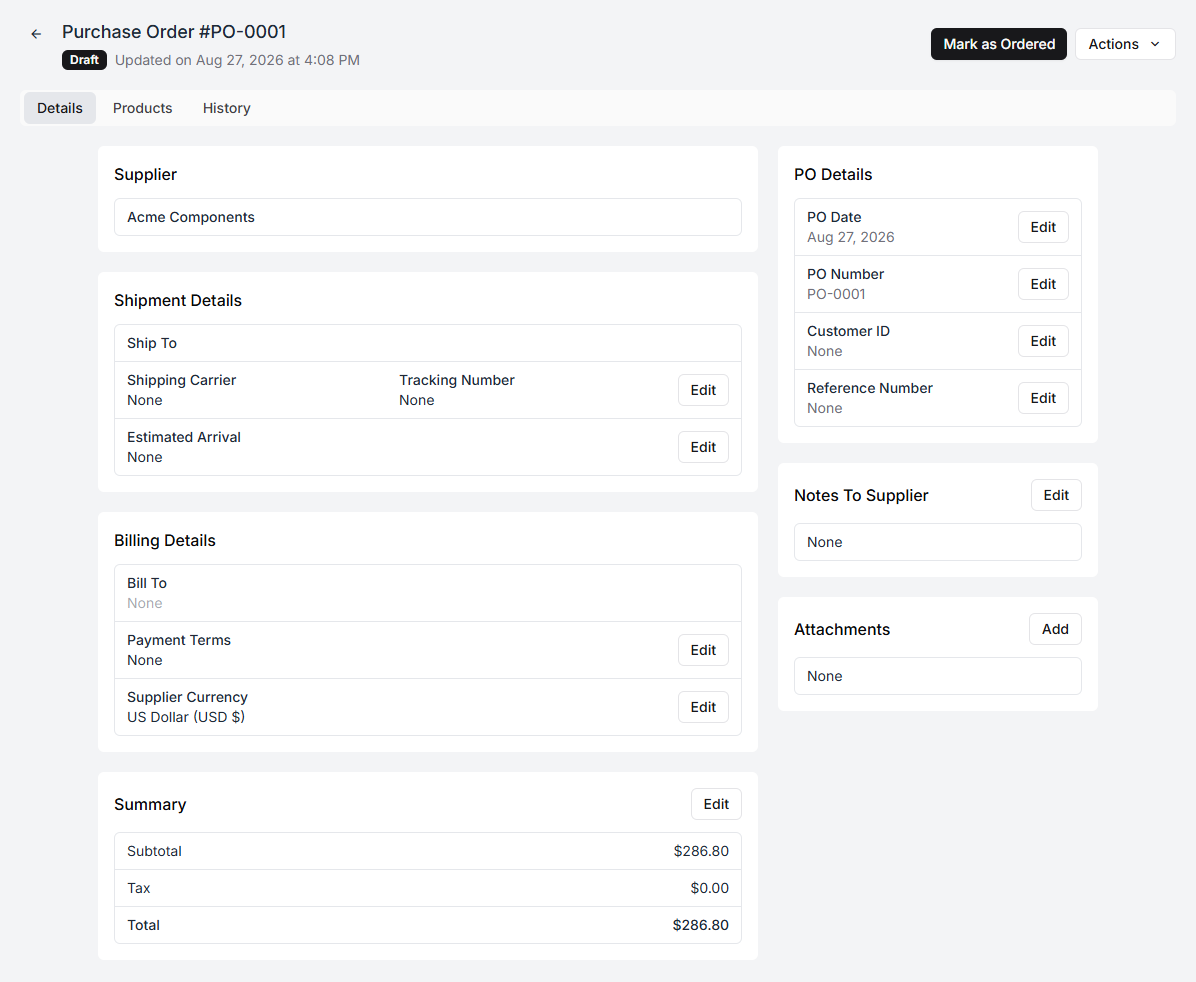
Payment terms offers the usual set — cash on delivery, payment on receipt, payment in advance, and Net 7 through Net 60.
Supplier currency is the currency the supplier prices in, not the one you sell in. Set it if you buy abroad, and the totals on the order stay in the numbers their invoice will use.
PO number is filled in for you from the format under company settings. Overwrite it if the supplier requires their own reference.
Notes to supplier prints on the PDF, up to 5,000 characters. It is the right place for delivery-window instructions and the wrong place for anything you would not want the supplier to read.
Adjustments add lines to the summary that are not products: Discount, Shipping, or Other, each with an amount and an optional description. This is how a freight charge ends up in the order total rather than as a surprise on the invoice.
Files can be attached — a supplier quote, a proforma invoice — and each attachment records who uploaded it.
Products
Section titled “Products”The second tab is what you are buying. Add Products opens a panel; search by name or SKU, tick what you need, and add them all at once.
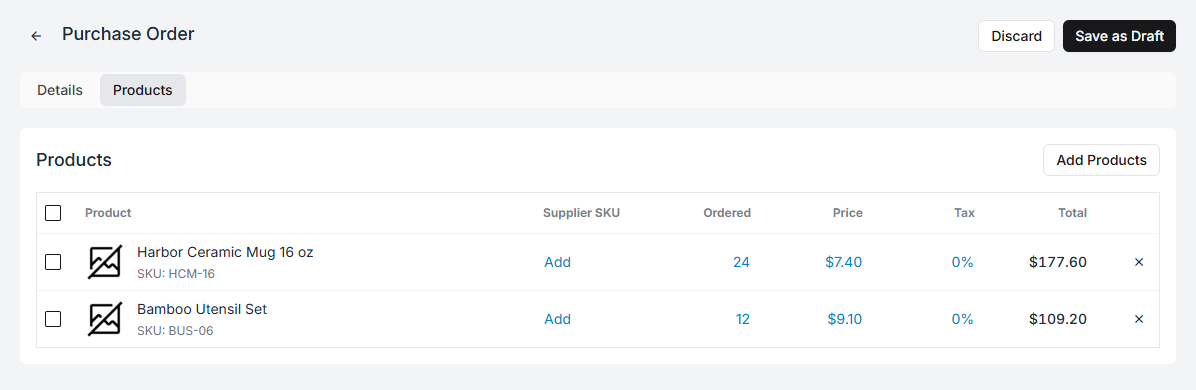
Each line then carries:
| Column | What it is |
|---|---|
| Product | From your catalogue |
| Supplier SKU | Their code for it, if it differs from yours |
| Ordered | How many you are buying |
| Price | Supplier price per unit |
| Tax | Tax rate for this line |
| Total | Calculated |
Select any cell to edit it. Lines start at quantity 1 and price 0, so both need setting; the subtotal at the right updates as you go.
Supplier SKU is worth filling in. It is what makes your purchase order legible to their order desk, and it is remembered against the product afterwards — so the next order to the same supplier already knows it.
Saving as draft
Section titled “Saving as draft”Save as Draft stores the order without committing to anything. A draft can be edited freely and deleted outright. Nothing in your inventory has changed.
Use drafts for orders you are still building — a basket you add to over a week before sending it.
Marking as ordered
Section titled “Marking as ordered”When the order is really placed with the supplier, Mark as Ordered. Fiftify warns you first, and the warning is worth reading:
After marking as Ordered, the inventory will be added to Incoming, and you’ll be able to receive it. This purchase order can’t be reverted to Draft.
Three things happen at once:
- Every quantity is added to that product’s incoming in the destination warehouse — so the stock is expected, though not yet countable or sellable.
- Fiftify records Acme Components supplies this product for every line, with the SKU, price, tax, and lead time from this order. Your supplier links build themselves out of your ordering.
- A receive task is created in the destination warehouse, so the dock knows a delivery is coming. See receiving stock.
An order needs at least one product line before it can be marked as ordered.
The statuses
Section titled “The statuses”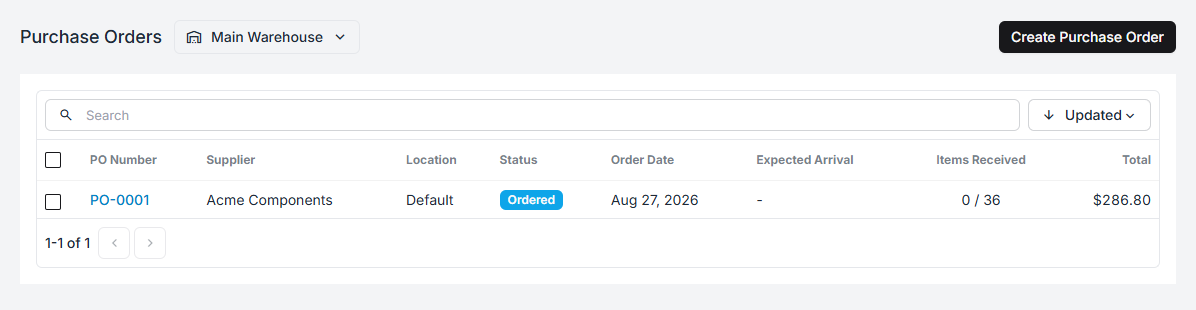
| Status | What it means |
|---|---|
| Draft | Still being built. Editable, deletable, invisible to inventory. |
| Ordered | Placed. Quantities are incoming; a receive task exists. |
| Partial | Some of it has been received. |
| Received | All of it has been received. |
| Closed | Finished with. Remaining incoming quantities are removed. |
| Overstock | More was received than was ordered. |
The Items Received column on the list — 0 / 36 — is the one to scan down. It
is the difference between “the supplier says it shipped” and “it is on our shelves”.
Closing and reopening
Section titled “Closing and reopening”Close Purchase Order ends an order you are not expecting any more of:
Closing this purchase order removes incoming inventory and prevents further edits. You can reopen it later if needed.
That first clause is the important one. A short delivery that is never closed leaves phantom incoming stock on the product forever, and every reorder decision after it is made against a number that is not true. If the supplier is not sending the rest, close it.
Reopen Purchase Order puts the unreceived quantity back into incoming, for when the rest turns up after all.
Duplicate and export
Section titled “Duplicate and export”Actions → Duplicate copies the order — same products, same prices, new PO number, back to Draft, received quantities reset. It is how a recurring order takes thirty seconds instead of ten minutes.
Actions → Export PDF produces the document to send.