
Receiving is the moment expected stock becomes real stock. Until a delivery is received, its quantities sit in incoming — counted towards reordering, and sellable by nobody.
The inbound board
Section titled “The inbound board”Warehouses → Inbound is the view of everything arriving.
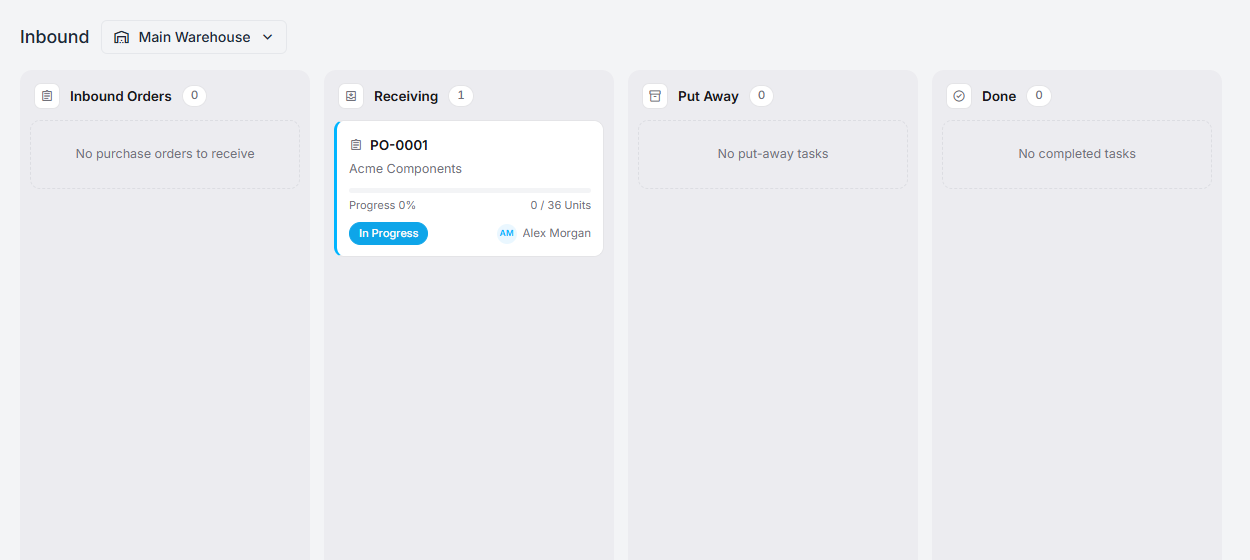
Columns run left to right in the order work moves:
Inbound Orders → Receiving → Put Away → Done
Mark a purchase order as ordered and it appears in Receiving as a task, showing the PO number, the supplier, a progress bar, the unit count, its status, and who it is assigned to. A fresh one reads 0 / 36 Units · To Do · Unassigned; the card above has been started, so it names the person working it.
The receive task
Section titled “The receive task”Open a task from the board.
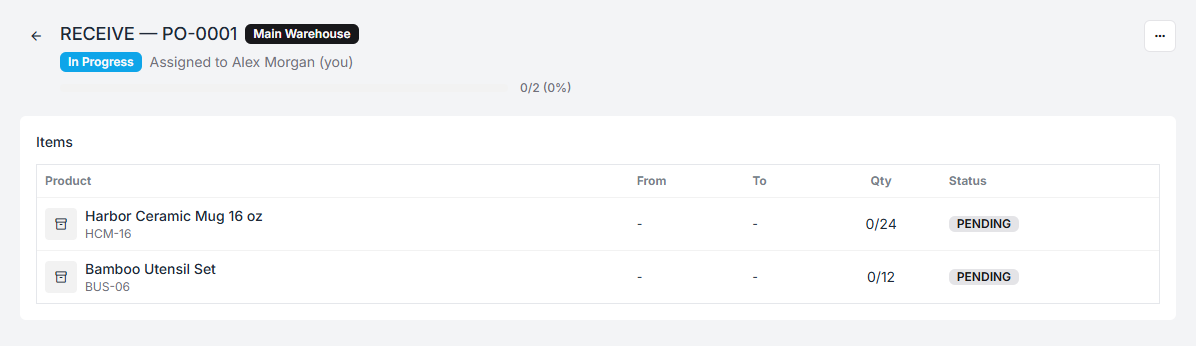
The desktop view is for supervising, not for counting: it shows every line with its required quantity and status, the overall progress, and a menu to assign the task to someone or take it yourself. Start Task puts it in progress and assigns it to you.
The counting itself happens on the floor, on the handheld — scan the item, enter what actually arrived, move on. That is deliberate: the person with the box in their hands is the one who should be entering the number.
What completing a receive does
Section titled “What completing a receive does”When the task finishes, Fiftify:
- Adds the received quantities to the purchase order. Its status becomes Partial if some arrived, Received once everything has.
- Puts the stock into the warehouse at the bin it was received to, so it is countable from that moment.
- Creates the next inbound task — usually put-away.
A short delivery is not an error and nothing needs forcing. Receive what came, and the purchase order sits at Partial until the rest arrives or you close it.
Put-away
Section titled “Put-away”Receiving gets goods into the building; put-away gets them onto a shelf. It is its own task, also worked on the handheld, and it is where a bin is chosen for each line. Once it completes, the stock is in a bin and a picker can be sent to it.
See stock by bin for what the bins are for.
The optional steps
Section titled “The optional steps”Between receiving and put-away, Fiftify can insert three more stages:
- QA — inspect before it goes to a shelf.
- Staging — hold the delivery somewhere while it is sorted.
- Repackage — break down a supplier’s packaging into your own units.
They are off by default. Turn them on per warehouse from Actions on the inbound board — each one you enable adds its own column, and each becomes a task in the chain:
Receive → QA → Staging → Repackage → Put away
Only enable a step you will actually work. An enabled QA step creates a QA task for every delivery, and a queue nobody empties blocks put-away behind it.
Cross-dock
Section titled “Cross-dock”Settings → Warehouses → (warehouse) → Settings carries a fourth option:
Cross-dock (skip put-away when stock is needed for an open order)
With it on, goods that arrive for an order already waiting on them are routed straight into picking instead of being shelved and fetched back. It saves two handling steps on a backorder — and it means the stock never appears in a bin, which is the correct behaviour but surprises people looking for it.
Leave it off unless backorders are a routine part of your week.
Where receiving shows up elsewhere
Section titled “Where receiving shows up elsewhere”- The Inbound row of the warehouse dashboard.
- The Items Received column on the purchase orders list.
- A product’s incoming figure, which falls as quantities are received.