
Connecting a channel is what turns Fiftify from an empty account into a working one: your listings and orders start arriving on their own.
Open the channel picker
Section titled “Open the channel picker”Select Add Channel in the header — or Connect Sales Channel on the Home checklist, which opens the same window.
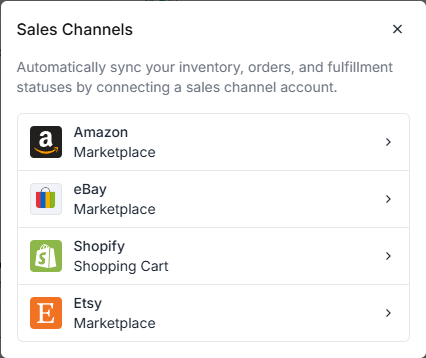
Fiftify connects to:
| Channel | Type |
|---|---|
| Amazon | Marketplace |
| eBay | Marketplace |
| Shopify | Shopping Cart |
| Etsy | Marketplace |
Authorize on the channel’s side
Section titled “Authorize on the channel’s side”Select the channel you want. Fiftify opens that channel’s own login and permission screen in a new window.
Complete the sign-in and approve the access request in the channel’s window — that part belongs to Shopify, Amazon, eBay, or Etsy, not to Fiftify, so the exact wording and screens are theirs. Log in with the account that owns the store, and accept the permissions Fiftify asks for.
Back in Fiftify
Section titled “Back in Fiftify”Once the channel approves the connection, its window closes and you return to Fiftify, which opens the new channel and starts pulling your catalog in.
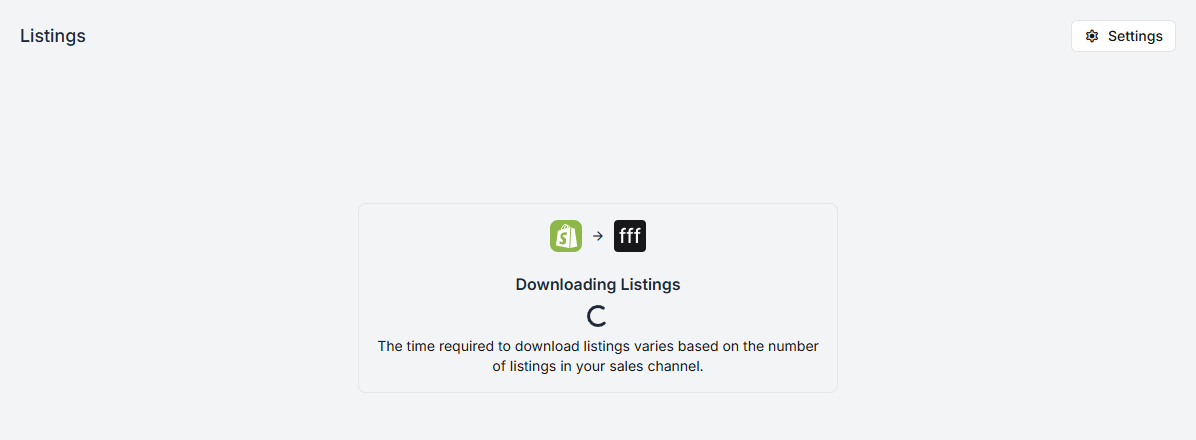
Importing is not instant — a large catalog takes a while, and listings appear progressively rather than all at once. You can keep working while it runs.
When the import finishes, your new channel is in the sidebar under Sales Channels, and its listings are ready to be matched to products — see link listings to products.
If the connection fails
Section titled “If the connection fails”- The window closed too early. Nothing is saved until the channel approves the request. Start again from Add Channel.
- You authorized the wrong store. Connect again with the correct account; each connection is tied to the store that approved it.
- Nothing appeared after the import. Give it a few minutes for a large catalog, then reload the listings page before reconnecting.