
A listing is how an item looks on a channel. A product is your own record of that item. Linking them is what lets Fiftify count one pile of stock behind three storefronts.
Until listings are linked, Fiftify knows what you are selling but not what you are holding.
Products
Section titled “Products”Open Inventory → Products. On a new account the list is empty.
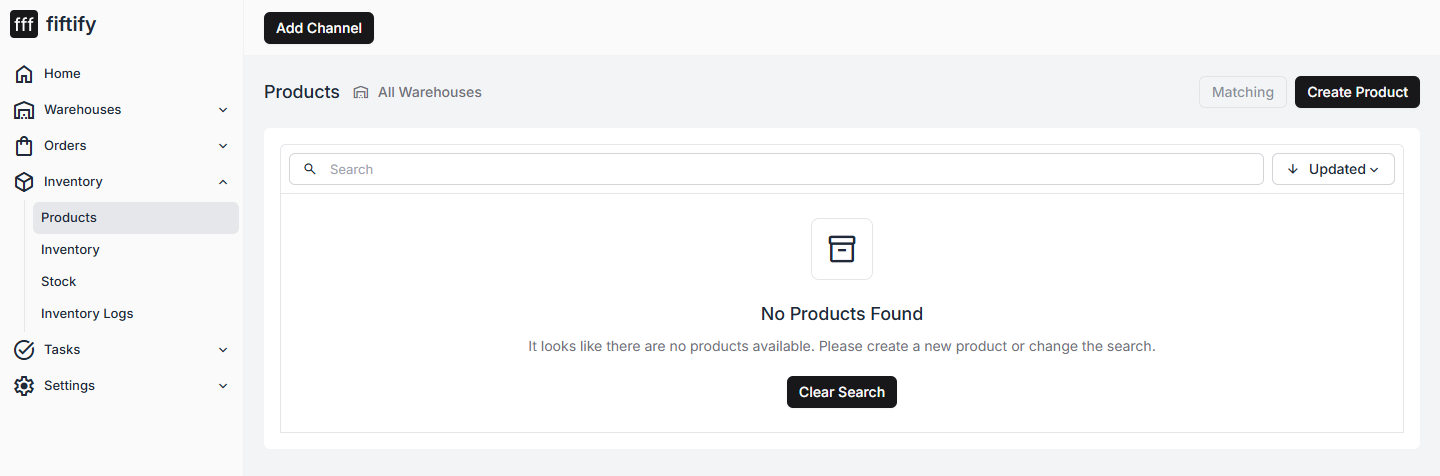
Products arrive in two ways: you create them yourself, or Fiftify creates them for you while matching imported listings. Most channels import their listings without touching your catalog, so on a fresh connection you will be pairing listings with products you already hold — see link a listing to a product.
Create a product by hand
Section titled “Create a product by hand”Select Create Product and give it a name, a SKU, and a barcode.
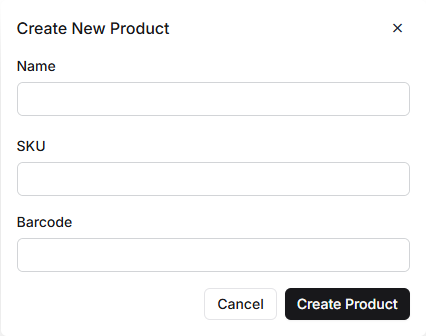
Only the name is needed to get started, but a SKU is what everything else keys off — matching, picking, and counting all lean on it, so fill it in.
Saving takes you straight to the product page.
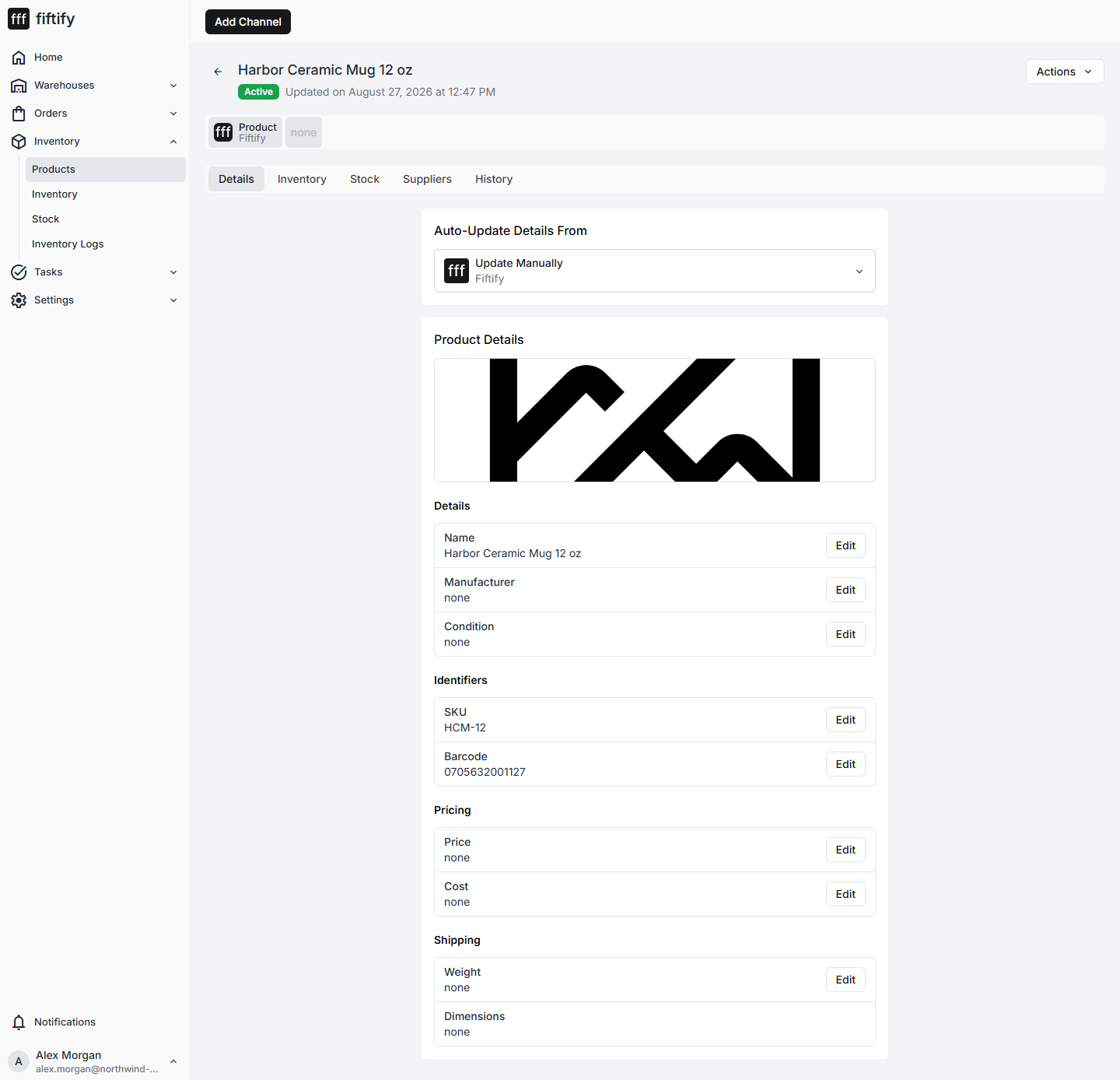
The tabs across the top hold the rest:
- Details — name, manufacturer, condition, SKU, barcode, price, cost, weight
- Inventory — quantities
- Stock — which bins hold this product
- Suppliers — who you buy it from
- History — what changed and when
Each field has its own Edit control, so you can fill the record in over time instead of completing one long form.
Matching listings
Section titled “Matching listings”The Matching button on the Products page is where imported listings get paired with products. Fiftify proposes matches based on what it can read from the listing; you confirm or correct them.
The Auto-Update Details From control on a product page decides who wins when a channel and Fiftify disagree about a field. Leave it on Update Manually if you want your own values to stand, or point it at a channel to let that channel’s data flow in.
The Home checklist ticks Link Listings as soon as one listing is linked to a product.
Next: set up your warehouse.