
Your account already has a warehouse — signing up created Default Warehouse for you. This page turns that placeholder into a real one.
Rename the warehouse
Section titled “Rename the warehouse”Open Settings → Warehouses. Your default warehouse is there, tagged Default and Active.
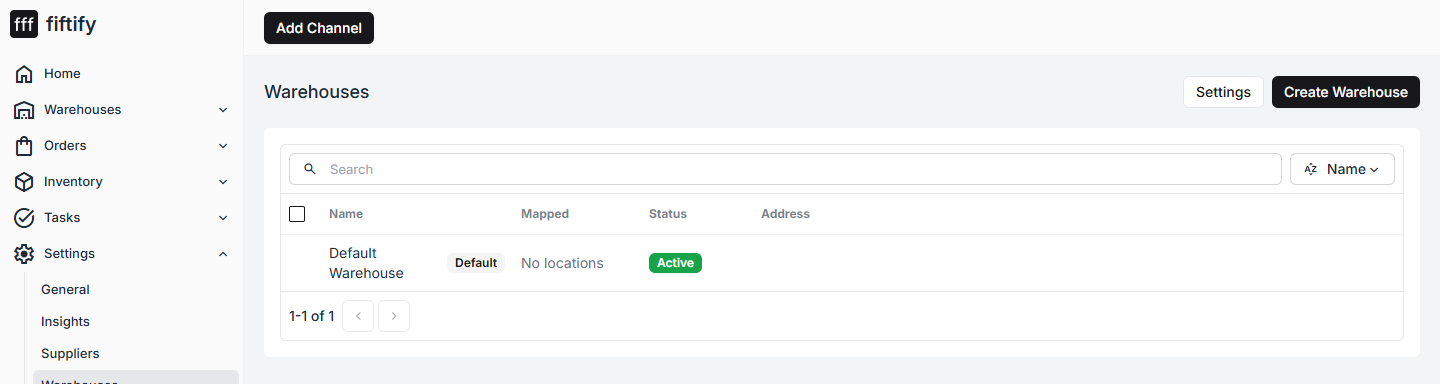
Select it to open its page.
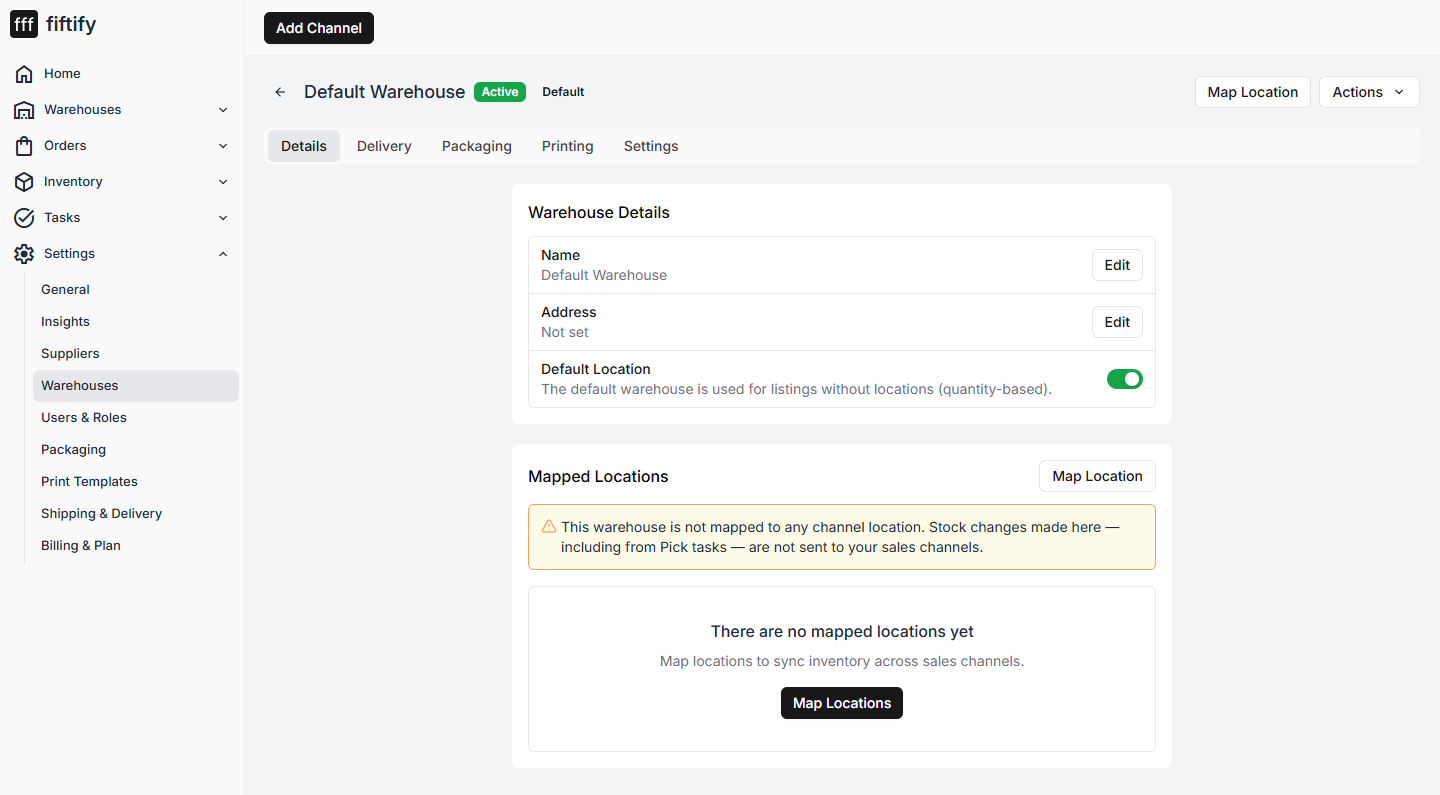
Use Edit next to Name to give it something you will recognise — “Main Warehouse”, “Portland DC”, whatever you call it on the floor.
Add the address
Section titled “Add the address”Select Edit next to Address and fill in the form: country first, then company, contact name, street, postcode, city, state, and phone.
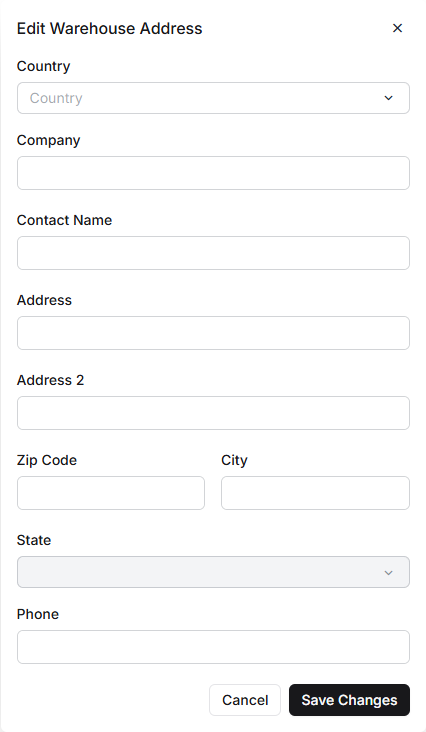
The address is not decoration — it is the origin address on shipping labels and what carriers quote rates against. Fill it in before you ship anything.
Mapped locations
Section titled “Mapped locations”A new warehouse is not mapped to any channel location, and the page says so plainly: stock changes made here, including from Pick tasks, are not sent to your sales channels until you map it.
Select Map Location and pair this warehouse with the location its stock represents on each connected channel.
Bins come from the layout
Section titled “Bins come from the layout”Open Warehouses → Layout & Bins. On a new warehouse the bin list is empty, and it tells you why: “Save your warehouse layout to generate bin locations.”
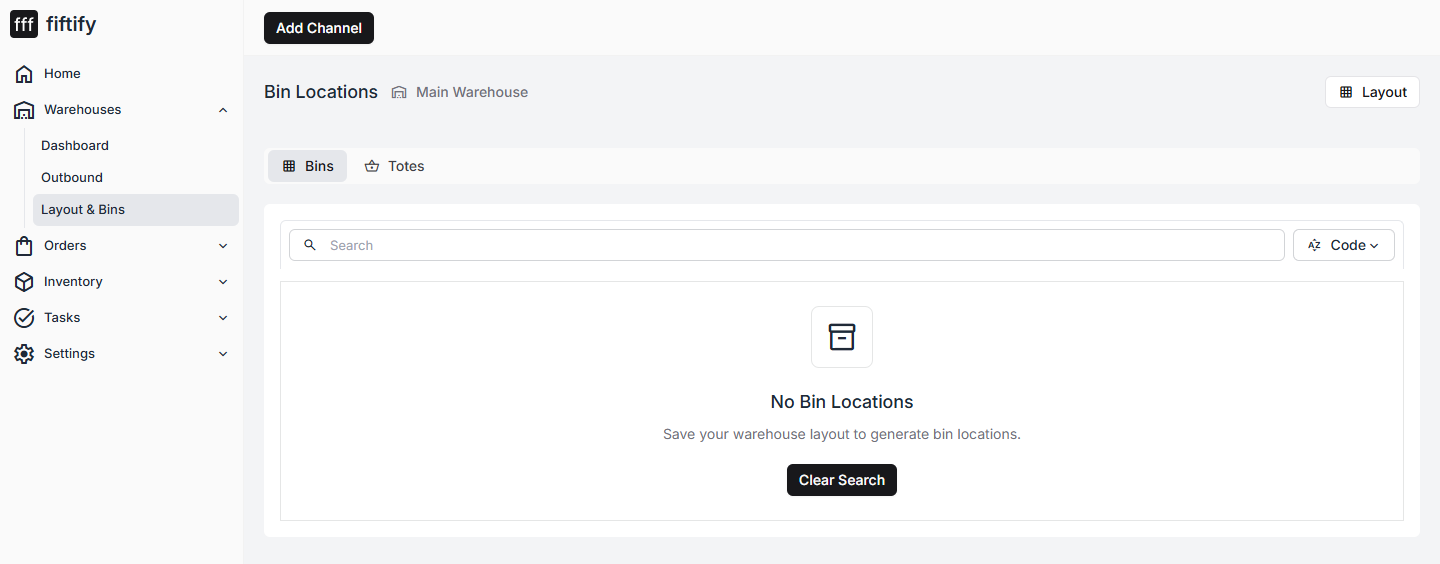
Bins are not typed in one by one. You draw the floor, and Fiftify generates the bins from it. Select Layout to open the editor.
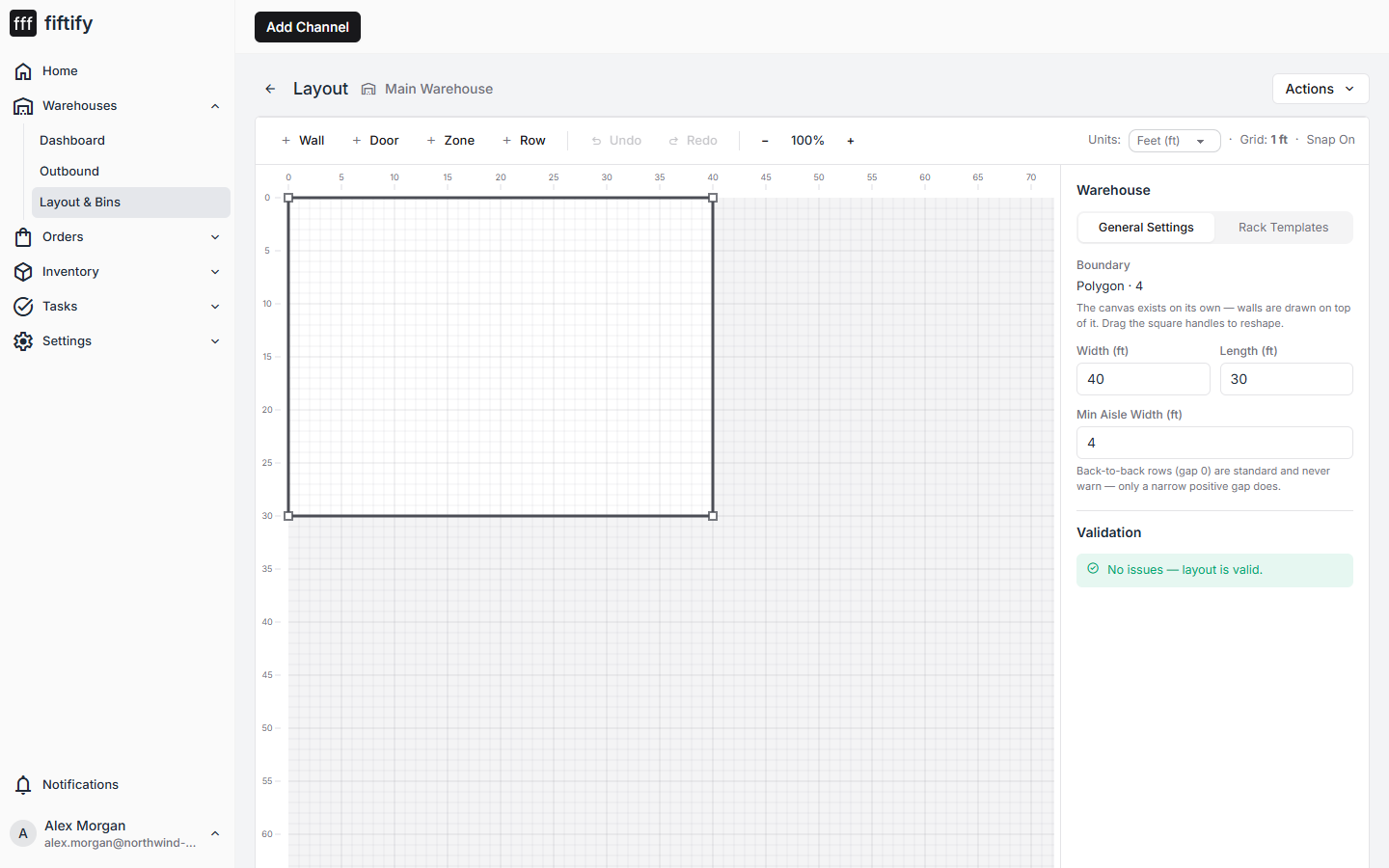
The editor is a measured floor plan. Along the top you have the tools:
- Wall and Door — the shell of the building
- Zone — an area, like receiving, storage, or packing
- Row — a run of racking inside a zone; this is what produces bins
- Undo / Redo, and a zoom control
Below them, set your units to Feet (ft) or Meters (m), and leave Snap on so shapes align to the grid.
Draw the outline, add your zones, then add rows inside them. Save, and the bins appear in the Bins tab, each with its own code for pickers to follow. The Totes tab beside it holds the movable containers stock travels in.
What “done” means
Section titled “What “done” means”The Home checklist ticks Set up Warehouse & Bins as soon as a warehouse exists — so it is already ticked. The work that actually matters is the rest of this page: a real name, a real address, mapped locations, and a layout that generates bins.
Next: add suppliers.