
Link a listing to a product
Published
An imported listing is what a channel sells. A product is what you hold. Linking the two is what lets Fiftify count one pile of stock behind several storefronts — and what lets a picker be told which bin to walk to.
Open the link panel
Section titled “Open the link panel”On the channel’s listings, select the icon in the Linked column of the row you want to attach. A panel opens on the right.
Search by product name, SKU, or barcode.
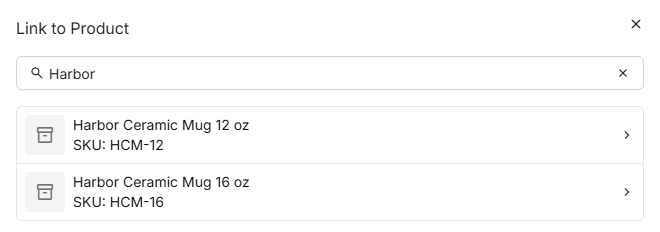
Only products that are not already linked to a listing on this channel appear. A product can back one listing per channel — that is what keeps a single count from being claimed twice in the same storefront.
Check the match
Section titled “Check the match”Choosing a product does not link it immediately. Fiftify first shows the two records side by side — the channel on the left, your catalog on the right — and marks each field that agrees.
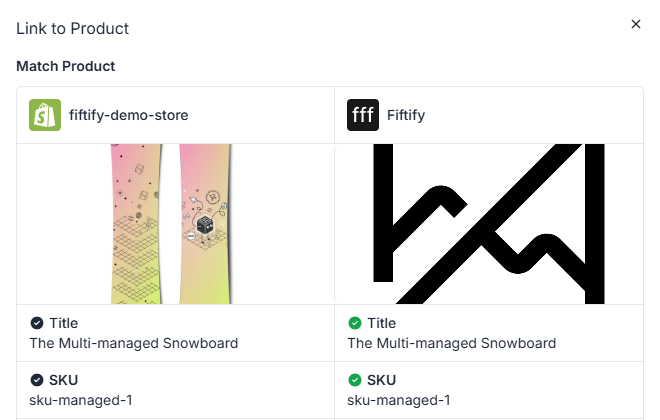
A tick means the field matches; a cross means it does not. A cross is not a blocker — it is information. A listing with no barcode will always cross on barcode, and that is fine. Three crosses usually means you have the wrong product.
Select Link Product to confirm.
Why SKUs make this easy
Section titled “Why SKUs make this easy”If the listing and the product carry the same SKU, this whole screen is a formality: search the SKU, see three ticks, confirm. That is the argument for keeping SKUs identical between your catalog and your channels — see the products list.
Where they differ, search by name and read the comparison carefully.
After linking
Section titled “After linking”The row’s Linked icon turns green, and from that point:
- The listing’s stock is drawn from the product’s bins.
- Selling on the channel commits and then deducts that stock.
- Selling the same product anywhere else lowers what this channel can sell.
Unlinking
Section titled “Unlinking”Open the same panel on a linked row and choose to unlink. The listing stays; it simply stops drawing on your stock. Do this if a listing was attached to the wrong product — link it to the right one afterwards, or the channel will keep selling something Fiftify is not counting.