
The listing page
Published
Selecting a row on a channel’s listings opens that listing on its own. The header carries the title, the channel it belongs to, the product it is linked to, a Link Listing button, and an Actions menu.
Three tabs sit under it: Inventory, Suppliers, and History.
Inventory
Section titled “Inventory”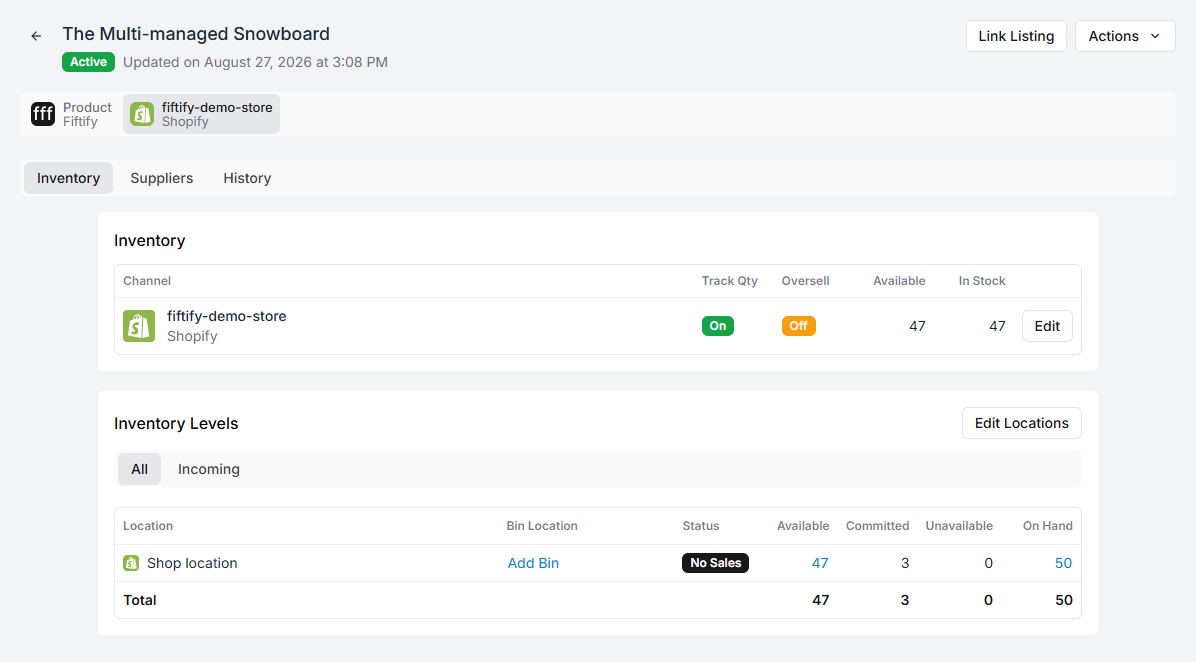
Two tables, answering two different questions.
Inventory — the channel’s own view. One row per channel, with Track Qty, Oversell, Available, and In Stock. Edit changes those settings for this listing.
Inventory Levels — where the units actually are, per channel location:
| Column | What it is |
|---|---|
| Location | The channel location |
| Bin Location | The bin, or Add Bin if none is assigned |
| Status | The stock signal for this line |
| Available | What can still be sold |
| Committed | Promised to orders already placed |
| Unavailable | Held but not sellable |
| On Hand | Everything physically there |
Edit Locations changes which locations this listing is stocked at, and the Incoming tab beside All shows units on their way in.
The gap between Available and On Hand is the committed column. A listing showing 47 available and 50 on hand has three units already promised to somebody.
Suppliers
Section titled “Suppliers”Who supplies this listing, with their SKU, price, lead time, and MOQ.
This is the same idea as a product’s supplier list, seen from the channel side. If the listing is linked to a product, keeping supplier data on the product is usually the tidier place for it — see suppliers.
History
Section titled “History”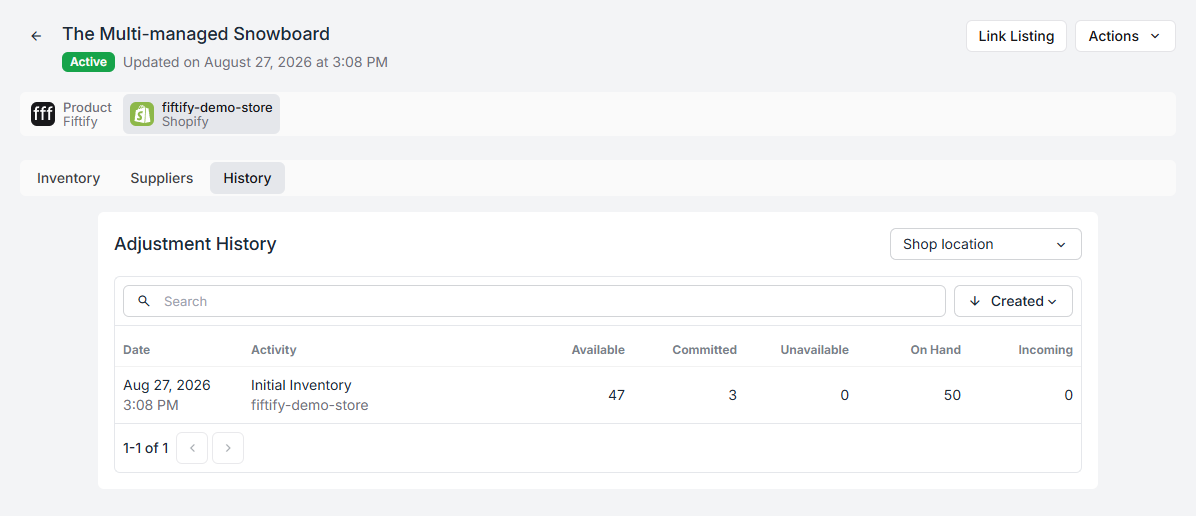
Every quantity change that has touched this listing, filtered by location:
Date · Activity · Available · Committed · Unavailable · On Hand · Incoming
The four quantity columns are balances after the change, so any row tells you what the listing looked like at that moment. Initial Inventory is the first row of every listing — what arrived when the channel was connected.
This is the page to open when a channel’s number and Fiftify’s number disagree and you want to know which of them moved.
Link Listing
Section titled “Link Listing”Link Listing in the header does the same job as the icon in the Linked column of the list. See link a listing to a product.
An unlinked listing still shows quantities here — they are the channel’s numbers, reported back to you. What it does not have is stock of yours behind it.
Listing or product?
Section titled “Listing or product?”Both pages show quantities, and it is worth being clear about which you are reading:
- The listing page is the channel’s view: what one storefront believes it has.
- The product page is your view: what you hold, across every bin and every channel.
When they disagree, the product page is the one describing your shelves.