
Channel settings and locations
Published
Each channel has a settings page, reached from Settings on its listings.
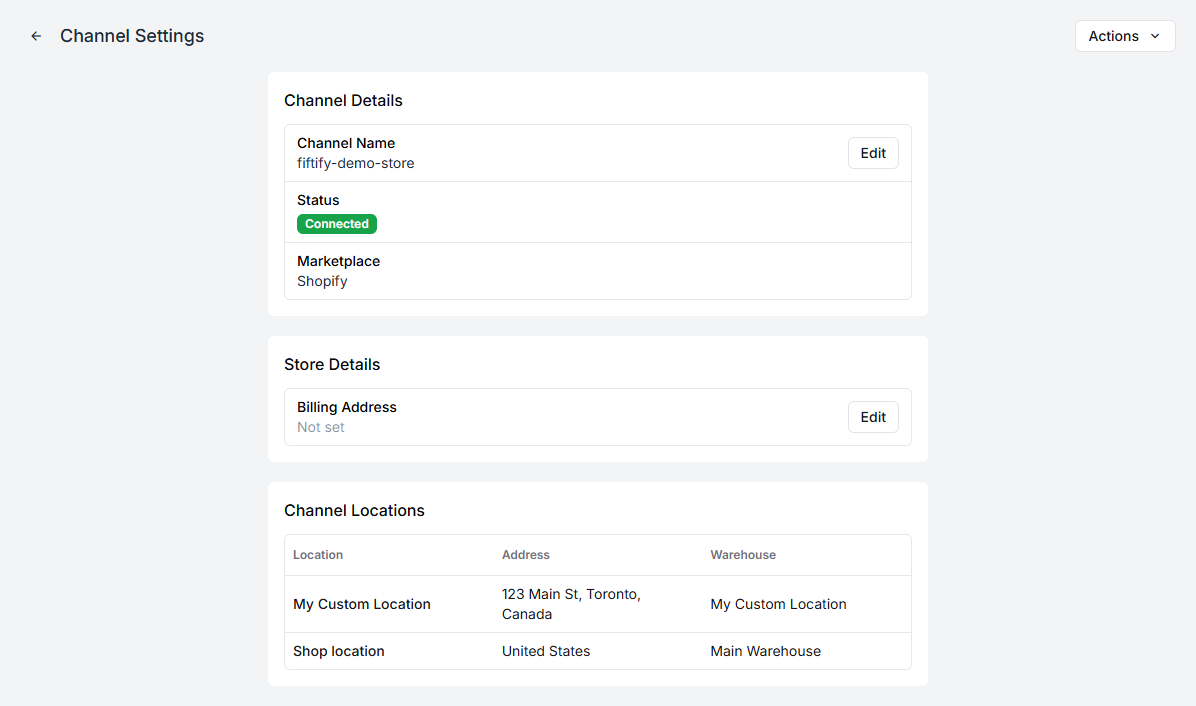
It holds three blocks:
- Channel Details — the channel’s name in Fiftify, its connection status, and which marketplace it is. The name is yours to change; it is how the channel appears in your sidebar.
- Store Details — the billing address held for the store.
- Channel Locations — every location the channel reports, and the warehouse each one points at.
Locations are the part that matters
Section titled “Locations are the part that matters”A channel keeps its own idea of where stock sits. Fiftify keeps yours. Until the two are connected, nothing syncs:
Some locations are not mapped to a warehouse. Inventory sync is disabled for unmapped locations.
That banner is not a warning you can work around — it is a description. An unmapped location means the channel can sell items Fiftify will never decrement, and stock you receive will never reach the channel.
Some locations map themselves when a channel is connected, if Fiftify can match one to a warehouse it already has. Anything it cannot match is left for you.
Map a location
Section titled “Map a location”Mapping is done from the warehouse side, under Settings → Warehouses. Open the warehouse the location belongs to and select Map Location.
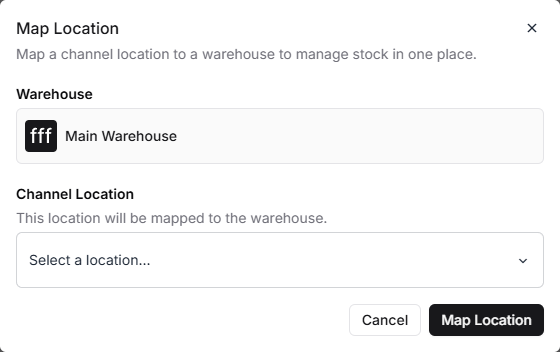
Pick the channel location from the list and confirm. The warehouse then lists it among its mapped locations.
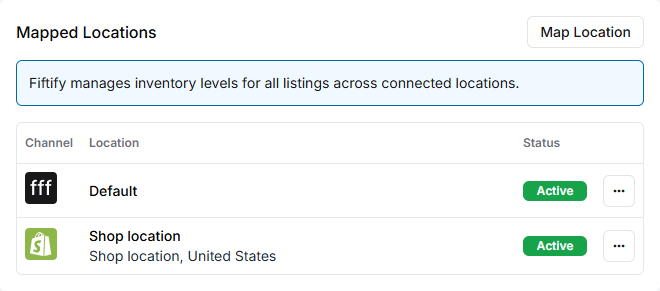
Each warehouse also carries a Default location of its own, which is what listings without a location of their own fall back to.
One location, one warehouse
Section titled “One location, one warehouse”A channel location points at exactly one warehouse. If a channel reports three locations and you run two warehouses, decide which physical building each channel location actually means — mapping two channel locations to the same warehouse is fine, splitting one across two is not possible.
Removing a channel
Section titled “Removing a channel”Actions → Remove on the channel settings page disconnects the channel. Its listings stop syncing and the channel leaves your sidebar. Your products, stock, and past orders stay where they are — they are yours, not the channel’s.
Reconnecting later goes through the same flow as connecting one for the first time, and picks up the existing records rather than duplicating them.