
Shipping is the last stage: the parcel leaves the building and the order starts tracking.
The ship queue
Section titled “The ship queue”Open Tasks → Ship.
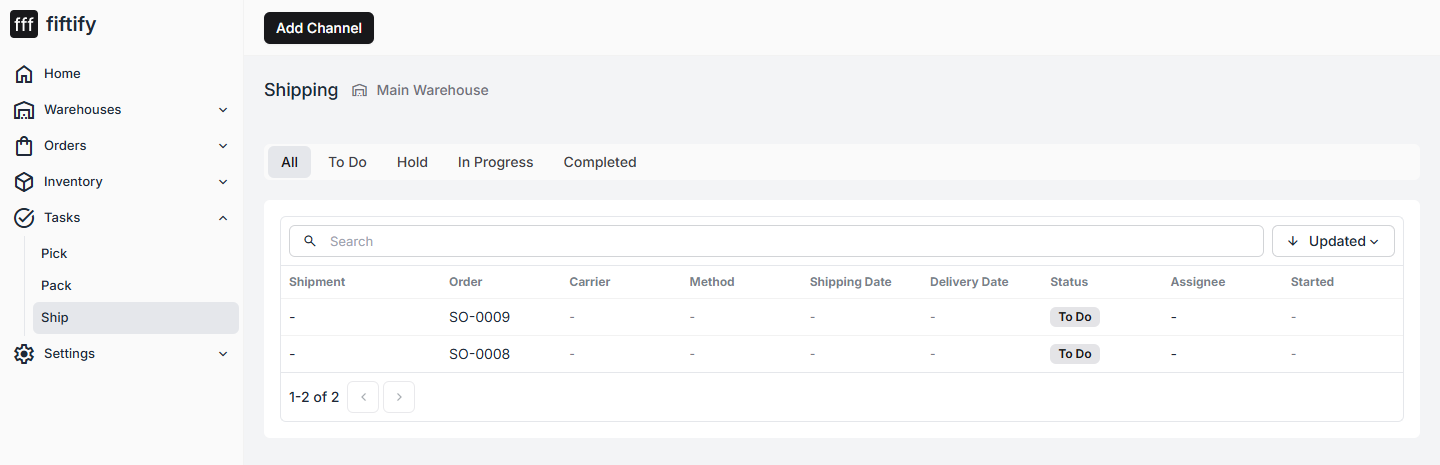
| Column | Meaning |
|---|---|
| Shipment | The shipment created when the order was packed |
| Order | The sales order |
| Carrier | Who is carrying it |
| Method | The service level bought at pack time |
| Shipping Date | When it is due to leave |
| Delivery Date | Expected delivery, once the carrier reports one |
| Status | To Do, In Progress, Completed |
A ship task with no shipment
Section titled “A ship task with no shipment”If you open a ship task and it says “No shipment yet. Complete the pack task first”, the order has not finished packing. A shipment record — and with it the carrier, service, and label — is created by the pack stage, not this one.
That is the normal message on a half-finished order, not an error.
Marking an order shipped
Section titled “Marking an order shipped”With a shipment in place, the ship task is a short confirmation: check the parcel against the label, hand it to the carrier, and mark it shipped. The order moves to In Transit, and tracking takes over from there.
For orders that are not going by carrier — a customer collecting in person, or your own van — the same task closes the loop without a carrier label. Which of those applies comes from the order’s fulfillment method: Carrier, Self Delivery, or Local Pickup.
After it ships
Section titled “After it ships”- The order stops counting as unfulfilled on Home and on the warehouse dashboard.
- Stock has already left the bins at pick time, so nothing further is deducted here.
- If the order came from a sales channel, Fiftify reports the fulfillment back to that channel, and the buyer sees the tracking on their side.
Where no carrier is involved — local delivery or store pickup — the paperwork is a delivery slip or a pickup slip instead of a label. Both are print templates, and which warehouses offer them is set in carriers and delivery methods.
The tracking page your customer sees
Section titled “The tracking page your customer sees”Fiftify hosts a public tracking page for each shipment, reachable from the link in the customer’s shipment notification. No sign-in, and nothing of yours on it beyond the order number.
It shows the shipment status — Pending, Shipped, In Transit, Delivered, or Cancelled — the carrier and tracking number, the shipped date, the estimated delivery, and the delivered date once it lands. Package details appear as they become known; until then it says so:
No package details yet — check back soon.
A customer who reports a dead link has usually mistyped or truncated it; the page answers that case directly:
Tracking not found. Double-check the link from your shipment notification.
Two things worth knowing when support asks: the page updates from carrier tracking, so it moves without anyone in the warehouse touching it — and it exists for every shipment, including ones on a channel that has its own tracking page.