
Picking orders one at a time means walking the same aisle over and over. Batching groups several picks into a single walk.
When Fiftify offers it
Section titled “When Fiftify offers it”The pick queue shows a banner as soon as there are unbatched picks waiting:
3 picks here aren’t in a batch yet. · Batch them
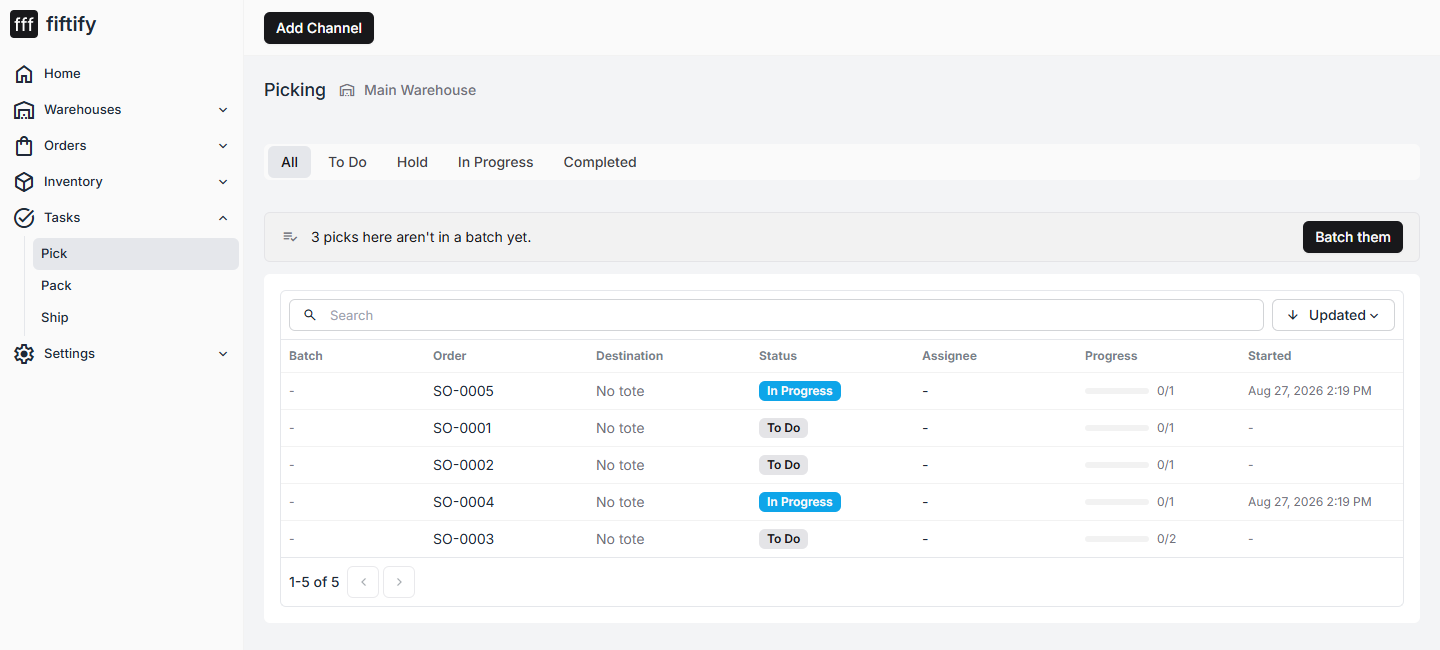
Select Batch them to group the waiting picks. The Batch column then carries the batch reference instead of a dash, and the tasks travel together.
Why totes matter here
Section titled “Why totes matter here”In a single-order pick you can carry the units by hand. In a batch you cannot — units from different orders must stay apart, or packing has no way to tell them apart.
That is what totes are for: one tote per order, scanned as the destination when the pick starts. Fiftify then knows that the contents of tote 3 belong to that specific order, and the pack task for that order names the tote as its source.
Create totes under Warehouses → Layout & Bins → Totes.
Working a batch
Section titled “Working a batch”A batched pick reads exactly like a single one — the difference is that the item list covers every order in the batch, ordered so you walk the aisles once rather than repeatedly.
Each line still names its own bin, and each confirmed pick still goes into the tote assigned to that order.
When the batch finishes
Section titled “When the batch finishes”Completing the batch closes every pick in it and creates one pack task per order — not one per batch. Packing stays per-order, because each order ships separately.