
Picking is the first stage on the floor: take the ordered units out of their bins and get them to the packing bench.
The pick queue
Section titled “The pick queue”Open Tasks → Pick.
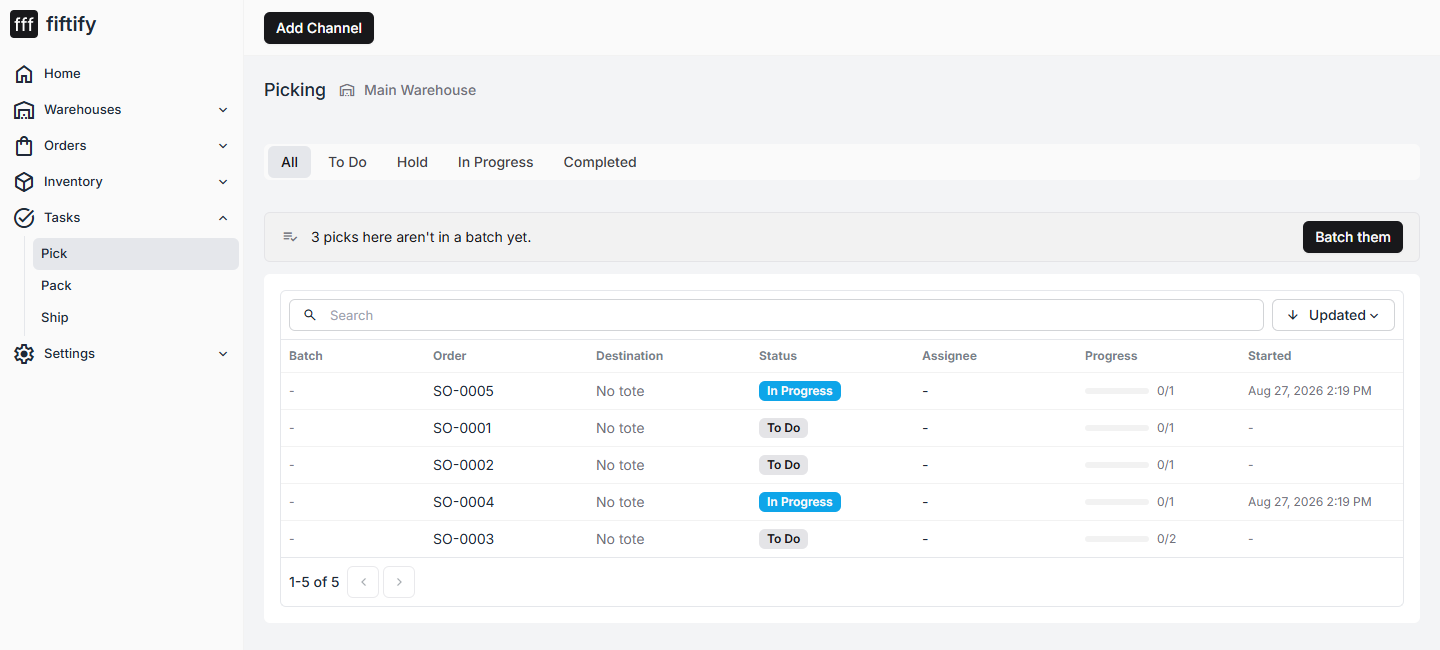
Each row is one order waiting to be picked:
| Column | Meaning |
|---|---|
| Batch | The batch this pick belongs to, if it was batched |
| Order | The sales order being picked |
| Destination | The tote or pallet the picked units go into |
| Status | To Do, In Progress, Hold, Completed |
| Assignee | Who took the task |
| Progress | Units picked out of units required |
| Started | When picking began |
The tabs above the list filter by status, and a banner appears when there are picks that are not in a batch yet — see batch picking.
Open a task
Section titled “Open a task”Select a row to open the pick.
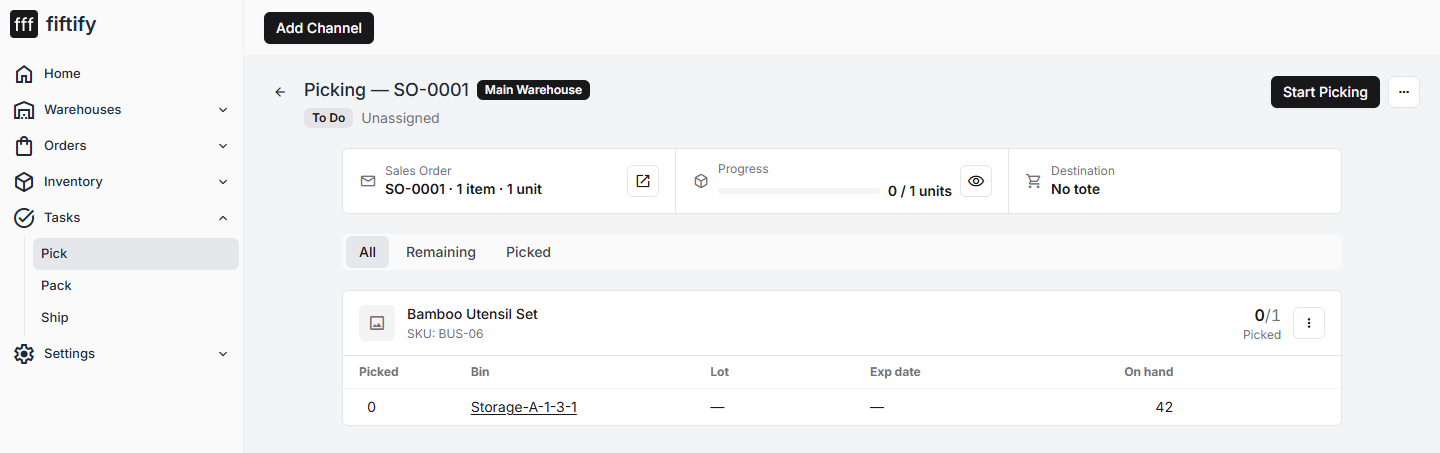
The three cards at the top are the summary: which sales order this is, progress in units, and the destination container. Below them is the item list, filtered by All / Remaining / Picked, with the bin and on-hand quantity for every line.
Select Start Picking to take the task. It moves to In Progress and is assigned to you.
Choose where the items go
Section titled “Choose where the items go”Starting a pick asks where the picked units will end up.
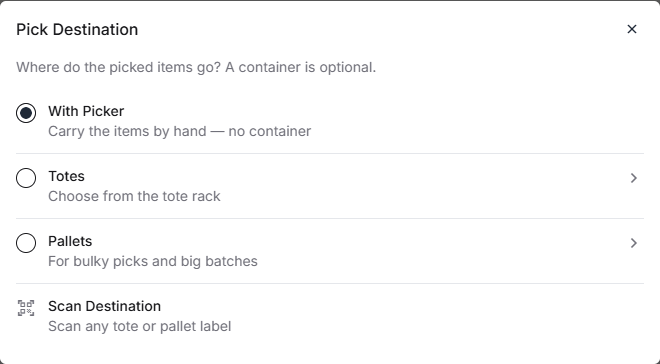
- With Picker — you carry the items by hand, no container
- Totes — pick a tote from the tote rack
- Pallets — for bulky picks and big batches
- Scan Destination — scan any tote or pallet label
A container is optional, but it is what lets packing find the goods later — and it is required in practice once you are picking several orders at once.
Pick the units
Section titled “Pick the units”Select the item line to open it.
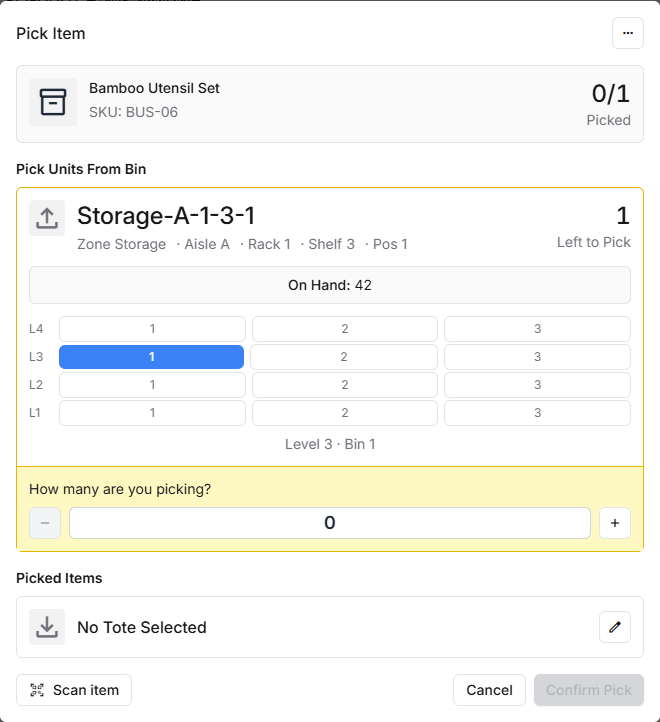
The dialog shows the bin (Storage-A-1-3-1 here), broken down as zone, aisle, rack,
shelf, and position, with the shelf map highlighting exactly where to reach. On Hand
is what the bin should contain.
Set How many are you picking? and select Confirm Pick. Scanning the item’s barcode with Scan item does the same thing faster and guards against picking the wrong SKU.
Repeat until progress reads n / n units.
Hand off to packing
Section titled “Hand off to packing”Select Complete Picking. Fiftify asks where the goods now are, because that answer becomes the source for the pack task.
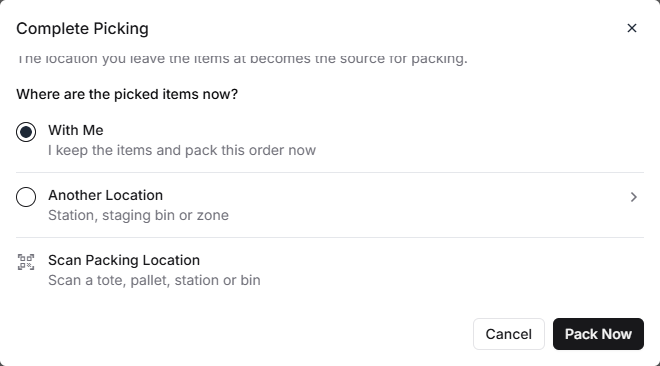
- With Me — you keep the items and pack this order yourself, right now
- Another Location — a station, staging bin, or zone
- Scan Packing Location — scan a tote, pallet, station, or bin
Choose one and confirm. The pick closes, its units leave the bins they came from, and Fiftify creates the pack task for the same order — opening it immediately if you said the goods are with you.
Next: packing an order.