
Users and invitations
Published
Everyone who works in Fiftify has their own account. Sharing one login across a shift is the one thing worth ruling out on day one: tasks are assigned to people, the productivity numbers are per person, and stock history names whoever moved it. None of that survives a shared password.
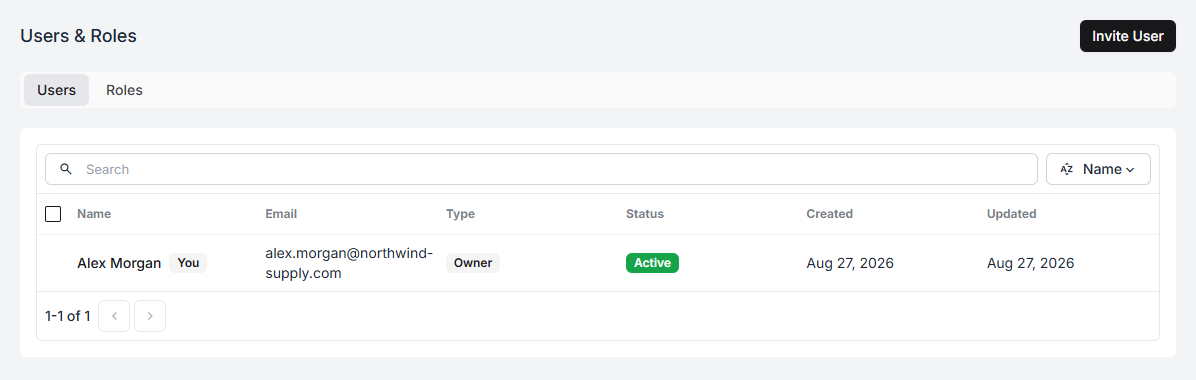
Settings → Users & Roles is where the team lives.
The columns
Section titled “The columns”| Column | What it tells you |
|---|---|
| Name | The person, with You marked on your own row |
| Where the invitation went, and how they sign in | |
| Type | Owner or Staff |
| Status | Active, Pending, or Inactive |
| Created / Updated | When the account appeared and last changed |
Pending means invited but not yet accepted — the account exists and the role is already attached, but nobody can sign in with it. Inactive means the account was switched off; it can be switched back on.
Inviting someone
Section titled “Inviting someone”Select Invite User and fill in four things: first name, last name, email, and the role they should have. Fiftify emails them a link to set a password.
The fifth field is the one that matters most in a multi-warehouse operation:
Warehouse — leave empty to apply the role in every warehouse. Picking one replaces that warehouse’s current role.
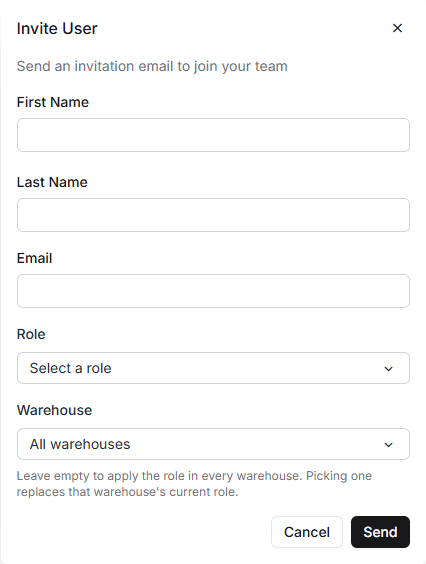
So an invitation can grant a role everywhere, or only in the building the person actually works in.
The invitation is tied to that email address. If it is mistyped, invite the correct address rather than trying to repair the wrong one.
Roles per warehouse
Section titled “Roles per warehouse”Open a person’s record and the Roles block offers two modes:
- All warehouses — one role everywhere, including warehouses you add later. Grow into a third site and this person’s access follows automatically.
- Per warehouse — pick a role for each warehouse separately. A warehouse with no role set means no access there at all.
A person holds at most one role in any given warehouse. Switching from per-warehouse to all-warehouses replaces the per-warehouse rows, and Fiftify warns you before it does.
Which one to use is a question about your operation, not about Fiftify. One site, or a team that floats between sites: all warehouses. Separate crews who should not be reaching into each other’s stock: per warehouse.
Roles, briefly
Section titled “Roles, briefly”A role is a bundle of permissions. Fiftify ships with eight built-in roles that cover most shapes of warehouse team — see roles and permissions for what each of them can do and how to build your own.
If you are unsure, start people on the narrowest role that lets them do their job. Widening a role later takes a moment.
Working on several people at once
Section titled “Working on several people at once”Select rows on the users list and the header turns into a toolbar: Activate, Deactivate, Send Invitation (useful when invitations went unanswered), and Add Role.
Add Role adds a role to everyone selected — it does not replace the roles they already hold. That is the intended behaviour, and it is also the way to hand a whole crew access to a newly opened warehouse in one go.
Deactivate, or remove?
Section titled “Deactivate, or remove?”Deactivate switches the account off. The person cannot sign in; the record and their history stay put; you can activate them again later. This is the right choice for seasonal staff and for anyone whose return is plausible.
Remove deletes the membership and cannot be undone.
Either way, what they did stays. The tasks they completed, the stock they moved, the orders they packed — history is a record of what happened, and it is not rewritten because someone left.
The Owner
Section titled “The Owner”The account that created the company is its Owner, and the Owner is the only person with billing and company ownership. That is exactly what the built-in Administrator role stops short of.
The Owner cannot be deactivated or removed. If the person who signed up is leaving, hand ownership over first — Change Owner on their record moves it to another member — and then deal with their account.