
Roles and permissions
Published
A role is a bundle of permissions with a name. People are given roles; roles decide what the app shows them and what it lets them do.
Settings → Users & Roles → Roles lists every role your company has.
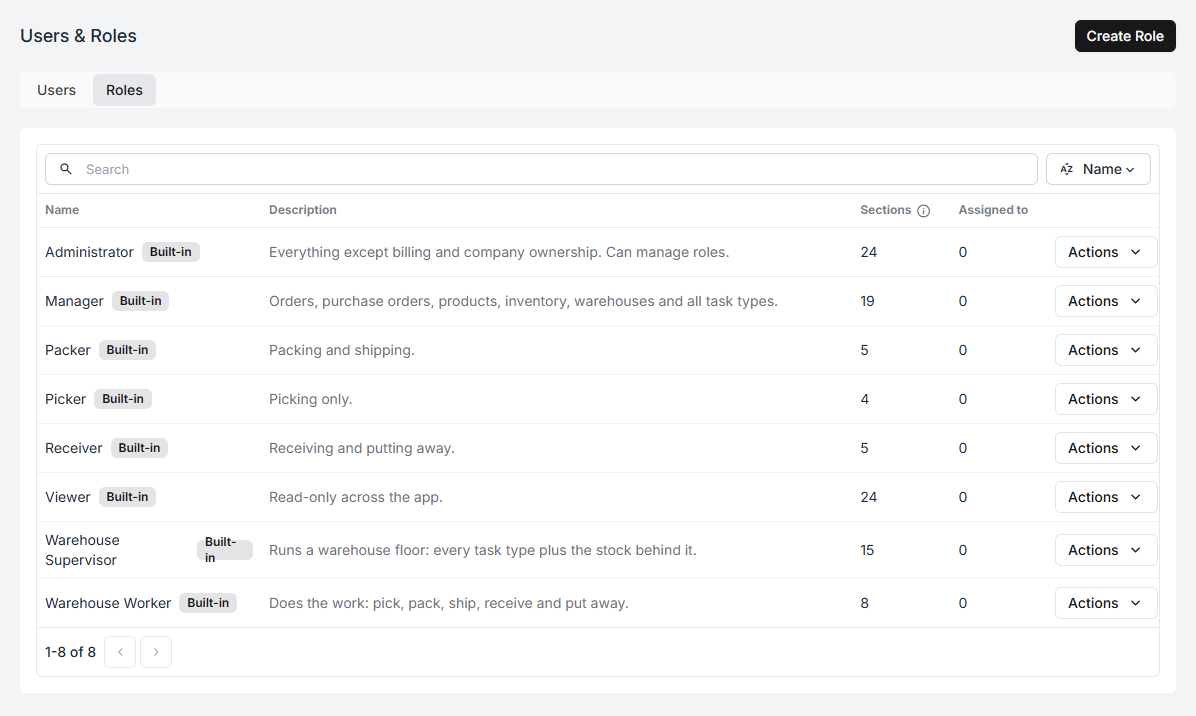
Each row shows the role’s description, how many sections of the app it opens, and how many people currently hold it.
The built-in roles
Section titled “The built-in roles”Fiftify ships with eight. They are marked Built-in and are read-only — they exist so a new company can put people to work on day one without designing a permission model first.
| Role | What it covers |
|---|---|
| Administrator | Everything except billing and company ownership. Can manage roles. |
| Manager | Orders, purchase orders, products, inventory, warehouses, and all task types. |
| Warehouse Supervisor | Runs a warehouse floor: every task type plus the stock behind it. |
| Warehouse Worker | Does the work: pick, pack, ship, receive, and put away. |
| Picker | Picking only. |
| Packer | Packing and shipping. |
| Receiver | Receiving and putting away. |
| Viewer | Read-only across the app. |
The four narrow roles at the bottom exist for a reason: a picker’s phone should show picking, not a purchase-order screen they will never use. Narrow roles are kinder to the person using them, not only safer for you.
Reading a role
Section titled “Reading a role”Open a role to see its permission matrix.
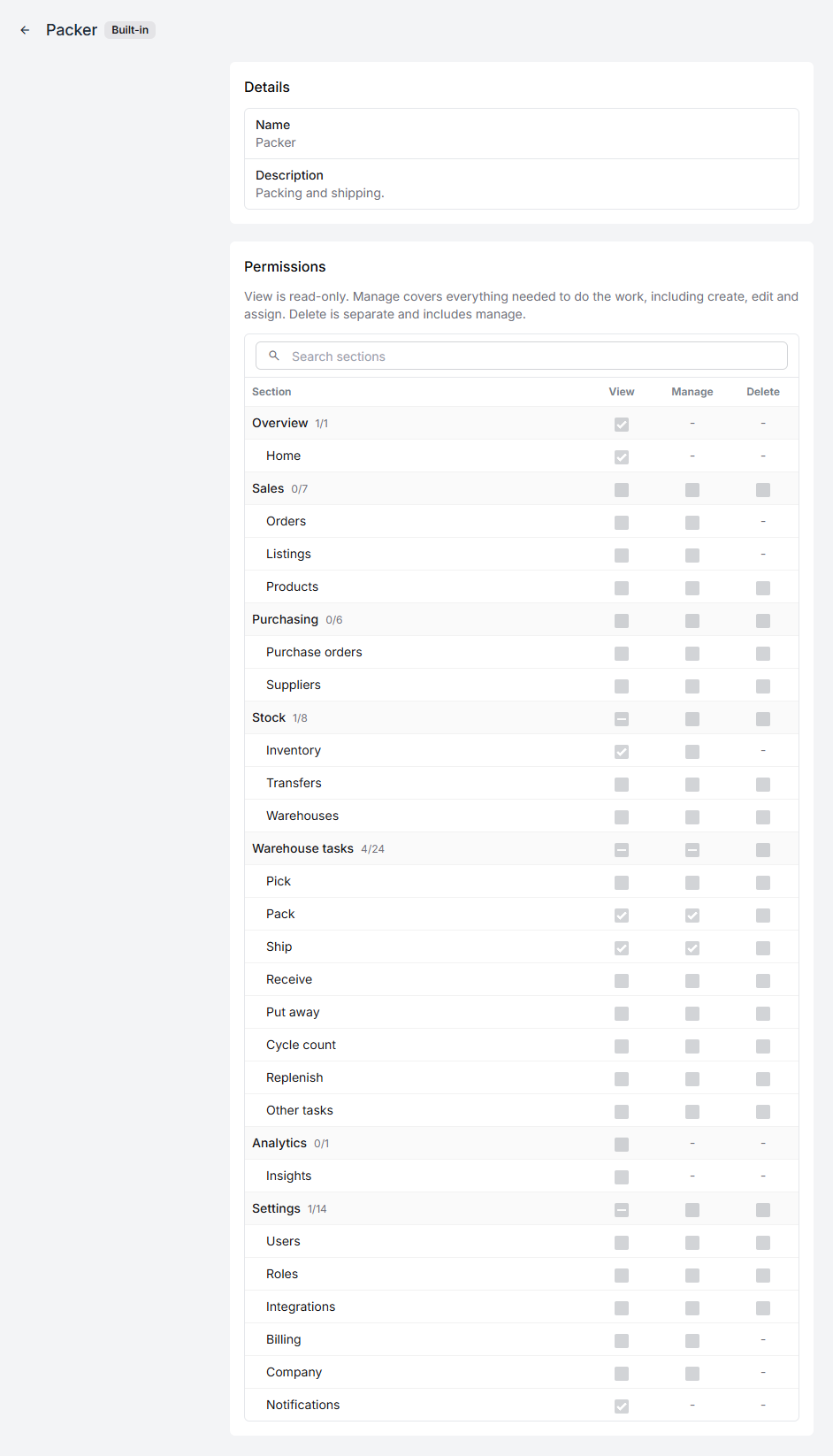
Sections are grouped the way the app is: Overview, Sales, Purchasing,
Stock, Warehouse tasks, Analytics, and Settings. Each group shows a
count — 4/24 on Warehouse tasks means four of that group’s twenty-four
permissions are granted.
Each section has up to three levels:
View is read-only. Manage covers everything needed to do the work, including create, edit and assign. Delete is separate and includes manage.
That last sentence is the one worth re-reading. Delete implies Manage — you cannot grant someone the right to delete purchase orders without also granting them the right to edit them. And some sections have no Delete at all, shown as a dash: there is nothing there to delete.
Ticking a group header sets every section under it at once.
Building your own role
Section titled “Building your own role”Built-in roles cannot be edited, and that is deliberate — it means the descriptions above stay true for everyone. To get an editable variant, copy one:
- On the roles list, open Actions → Copy on the role closest to what you want.
- Fiftify creates a copy you own.
- Open it, adjust the matrix, and rename it to something your team will recognise.
Starting from Warehouse Worker and removing a section is nearly always faster — and safer — than starting from nothing and trying to remember everything a picker needs.
You can also start empty with Create Role: name it, then pick permissions on the next screen.
Deleting a role
Section titled “Deleting a role”Only your own roles can be deleted, and only once nobody holds them. If people still do, Fiftify says so and names the count:
3 members still have Night Shift. Remove the role from them before deleting it.
Move those people to another role first. This is a guard rail, not an obstacle — deleting a role out from under someone would silently take away their access to work they are in the middle of.
Roles and warehouses
Section titled “Roles and warehouses”A role says what someone may do. Where they may do it is set on the person, not on the role — see users and invitations. The same Picker role can apply in one warehouse for one person and in all of them for another.