
Designing your warehouse layout
Published
Fiftify does not ask you to type bins in one by one. You draw the floor, and the bins fall out of it.
Open Warehouses → Layout & Bins and select Layout.
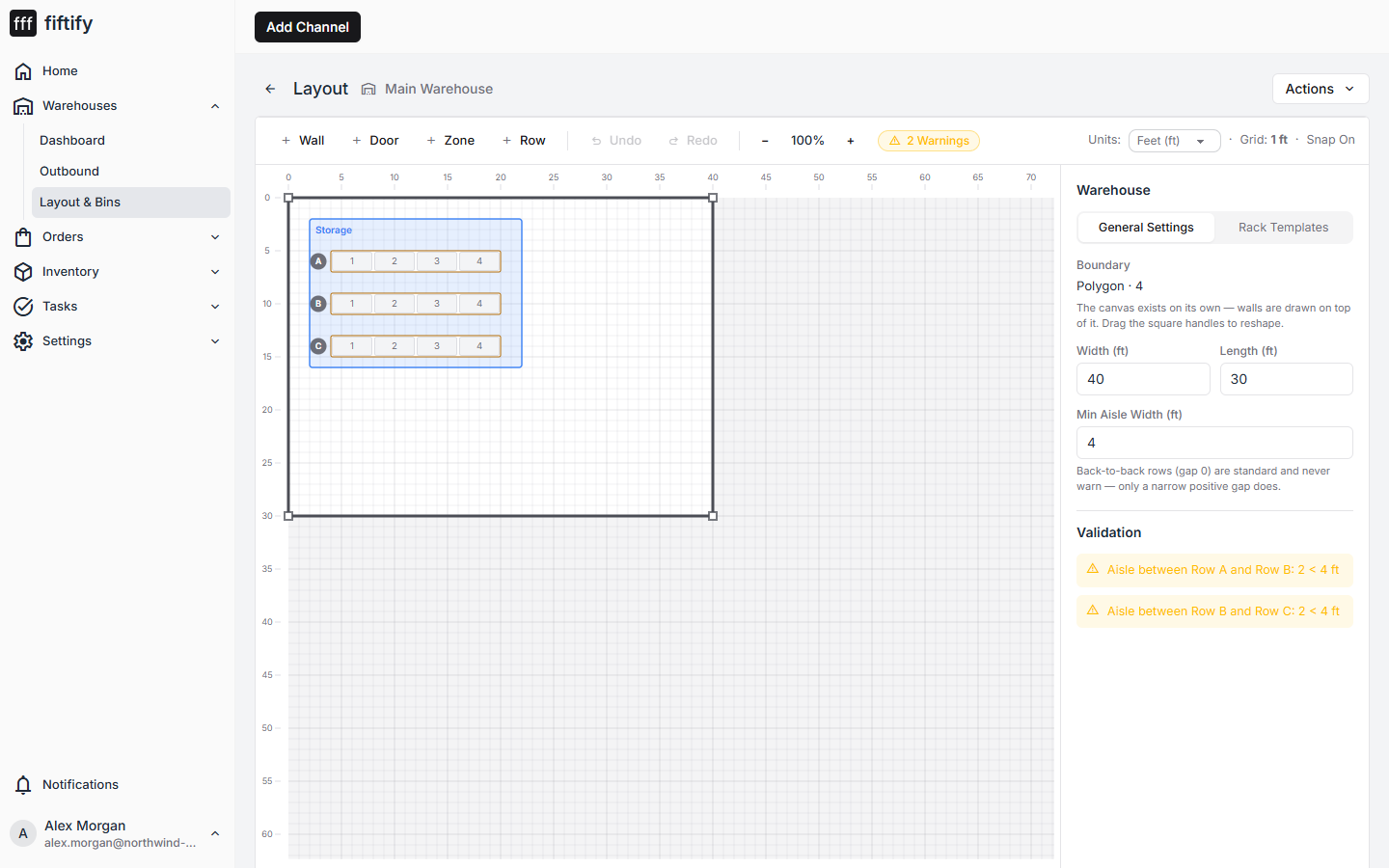
The canvas
Section titled “The canvas”A measured floor plan with a ruler along each edge. The controls across the top:
| Tool | What it draws |
|---|---|
| Wall | The shell of the building |
| Door | Openings in the shell |
| Zone | An area — storage, receiving, packing |
| Row | An aisle of racking inside a zone |
Alongside them: Undo / Redo, a zoom control, a Units switch between feet and meters, the grid size, and Snap — leave snapping on so everything aligns.
Work outside in
Section titled “Work outside in”- Walls first. Trace the building so the plan matches the real floor.
- Then zones. Add a zone, name it (
Storage,Receiving,Packing), give it a type, and set its position and size in the properties panel on the right. Dragging the zone moves the rows inside it with it; hold Alt to move the zone alone. - Then rows. With a zone selected, add a row for each aisle of racking. Give it a
label —
A,B,C— and place it inside the zone. Rows can run horizontal or vertical. - Then racks. Each row holds one or more racks. Add Rack extends the aisle; every rack you add makes the row longer on the plan, exactly as it is on the floor.
Racks, shelves, and bins
Section titled “Racks, shelves, and bins”Selecting a rack opens its shelf map.
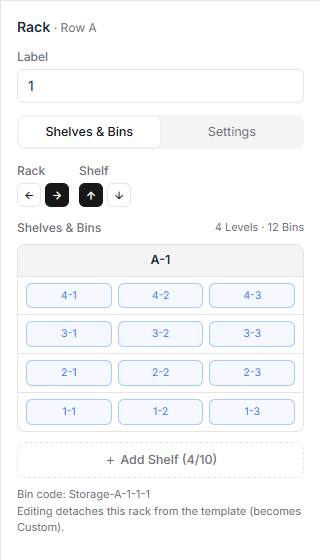
A rack from the default template is 4 levels · 12 bins — four shelves, three
positions each. The grid is the rack as you face it: L4 at the top, L1 at the
floor, positions left to right.
Add Shelf grows the rack up to ten levels. Editing a rack detaches it from the template and marks it Custom — deliberate, so template changes never silently reshape a rack you tuned by hand.
The line under the grid previews the bin code this rack will produce, for example
Storage-A-1-1-1. See bins and bin codes.
Save writes the layout and generates the bins. Three aisles of four racks produce 144 bins — and they exist as real, scannable locations the moment you save.
Warnings in the toolbar flag geometry worth a second look — a row overlapping another, or sticking out of its zone. They do not block saving.
The zone types and level colours the editor draws with are shared by every warehouse and edited in one place — see warehouse settings.