
Create and edit a product
Published
A product is something you hold. Creating one takes three fields; making it useful takes a few more.
Creating
Section titled “Creating”Products → Create Product.
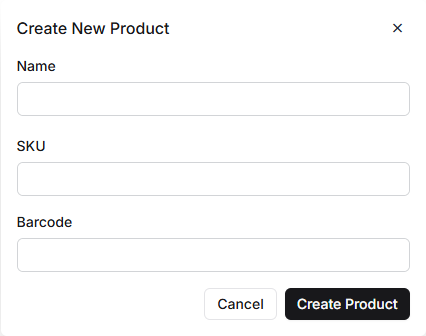
| Field | Notes |
|---|---|
| Name | What you call it internally |
| SKU | Your code for it |
| Barcode | The code printed on the item, if it has one |
That is all Fiftify needs. Everything else is added on the product’s own page afterwards, which is deliberate — a product created quickly during receiving should not be a form nobody finishes.
Give it a real SKU now. SKUs are what listings match against, what pickers read, and what suppliers order by; changing one later means changing it everywhere it has already been used. See the products list.
The details page
Section titled “The details page”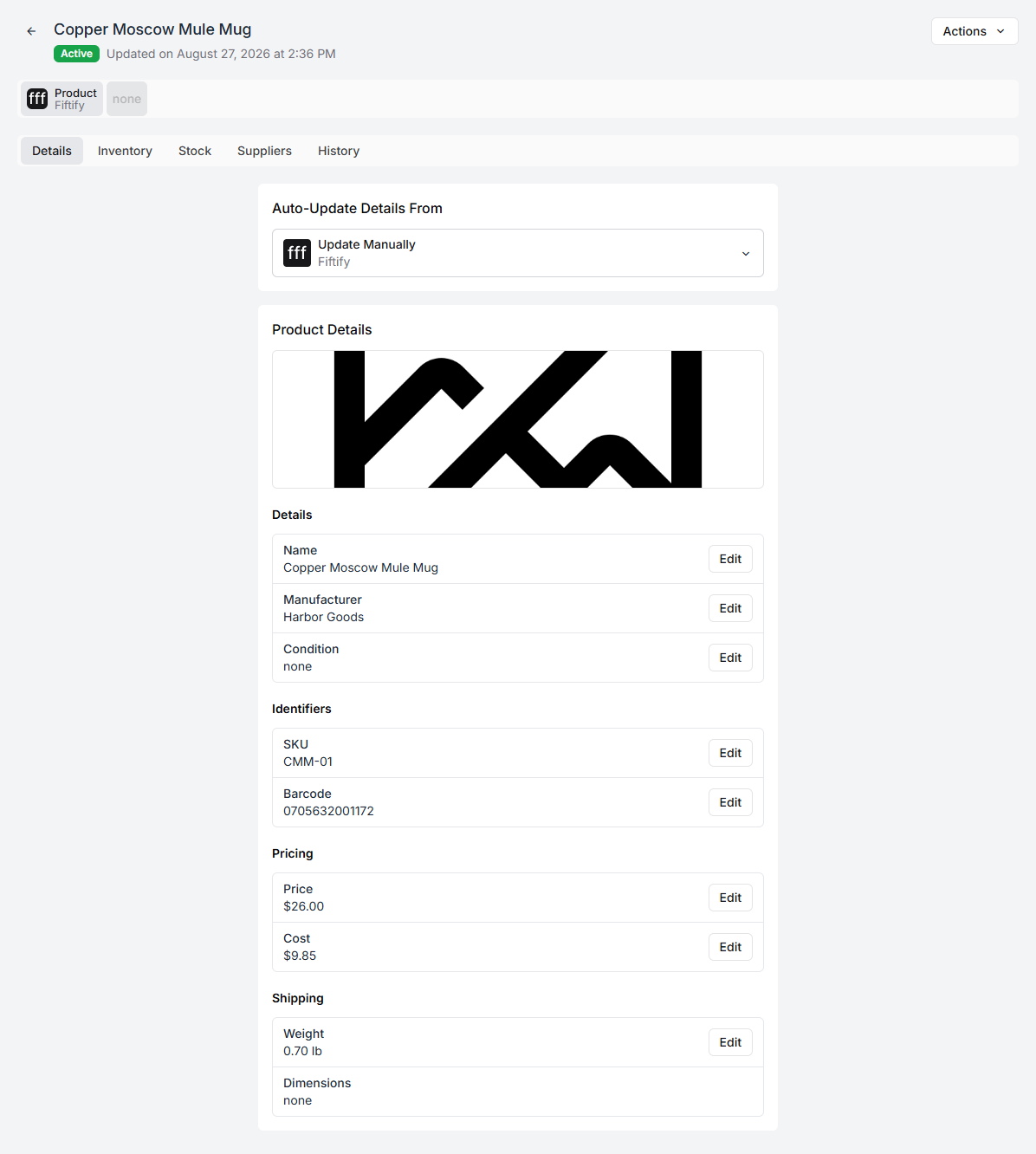
Every field is edited in place — select a value, change it, save.
Details — name, manufacturer, condition.
Identifiers — SKU and barcode.
Pricing — Price is what you sell it for, Cost is what you pay. Cost is worth filling in even if nothing prints it: it is the difference between knowing your revenue and knowing your margin.
Shipping — weight and dimensions. A product with no weight cannot be rated by a carrier, so the packer ends up typing one at the bench on every order. Fill it in once.
The same block carries the cross-border fields: country of origin, HS code, and a customs description. If you ship internationally, these are what go on the customs declaration, and a missing HS code is a parcel held at a border.
Status
Section titled “Status”A product is Active, Draft, or Archived.
Archived is the right way to retire something you no longer sell. It leaves the history, the stock records, and the past orders intact while taking the product out of the way. Deleting is for products created by mistake.
Auto-update from a channel
Section titled “Auto-update from a channel”A product that came in from a connected channel shows Auto-Update Details From at the top, with the channel named — or Update Manually.
Pointed at a channel, the product’s details follow that channel: rename it there and the name changes here. Set to Update Manually and Fiftify stops overwriting what you have typed.
Which you want depends on where you consider the truth to live. If your Shopify admin is where the catalogue is maintained, leave it following the channel. If Fiftify is your master catalogue and the channel is one of several storefronts, switch to manual — otherwise a listing edit on one channel quietly rewrites what every other channel shows.
The tabs
Section titled “The tabs”| Tab | What is on it |
|---|---|
| Details | Everything above |
| Inventory | Per-channel quantities, Track Qty, and Oversell |
| Stock | Where the units physically are, by warehouse and bin |
| Suppliers | Who supplies it, at what price and lead time |
| History | What has changed, and who changed it |
See the product page for what each of them is for.
Deleting
Section titled “Deleting”Actions → Delete, and it cannot be undone. If the product has ever been sold, archive it instead — deleting removes something your order history refers to.